How to Share an Apple Note for Editing or View-Only Access on iPhone
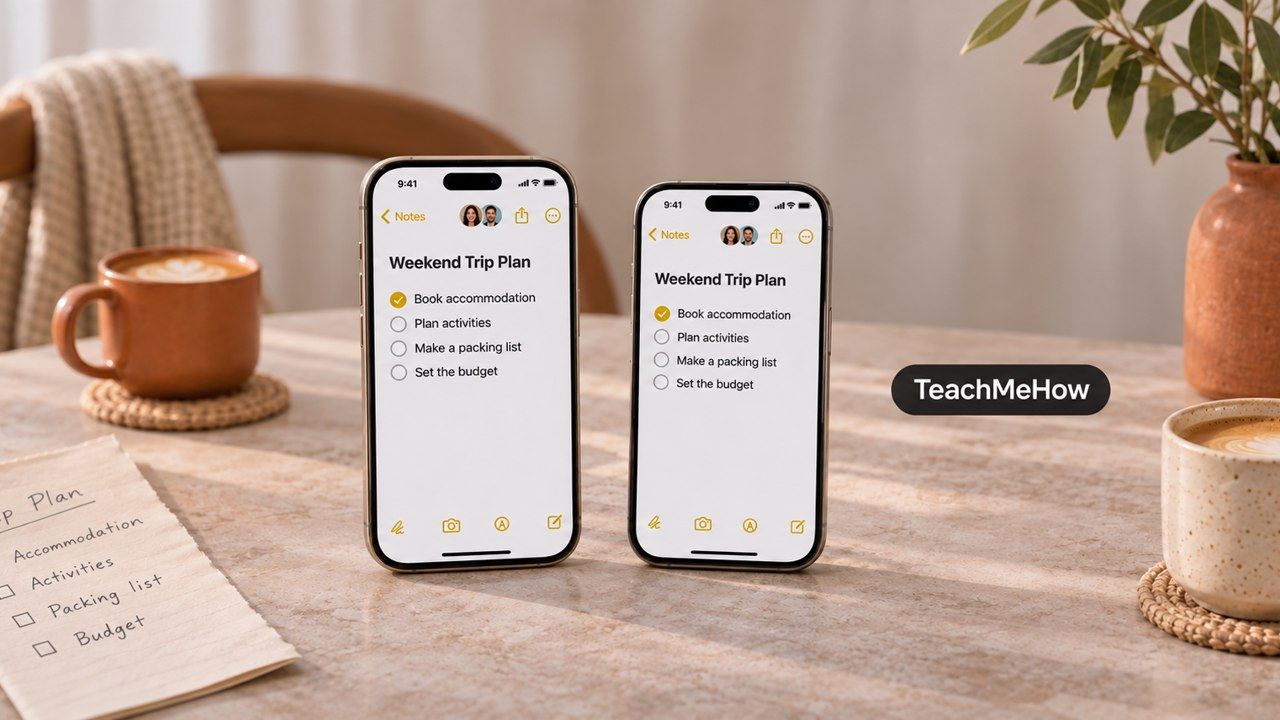
Send a live iCloud note, choose who can edit it, and check what recipients see before sharing it more widely.
Follow these steps at your own pace. Check product terms and prices directly with providers before purchasing.
Open an unlocked iCloud note on your iPhone and tap Share. Choose Share a Link in newer Notes versions or Collaborate on earlier versions. Open the sharing options to select the people and whether they can edit or only view. Use Send a Copy when you want to deliver a snapshot with no ongoing shared editing.
Decide what the other person needs to do
Imagine you’re planning a weekend event with one co-organizer and several guests. The co-organizer needs to add supplies. Guests only need the address and arrival time. You can give your co-organizer edit access and use a separate guest note or a snapshot for details that visitors need. Keeping the information in separate notes helps everyone find the right version.
Open Folders and look for the note under iCloud. Collaboration uses iCloud Notes, and the note can’t be locked. If you keep the source note private, make a separate note that contains only the material you intend to share. Before moving anything, check which account the original uses. Verify Notes syncing if your iCloud folder is missing or empty.
Invite the right people with the right access
1. Open the iCloud note’s Share menu
Open the exact note under All iCloud or its iCloud folder. Tap Share. Choose Share a Link if offered, or Collaborate on earlier versions. The Send a Copy option sends the current content instead of granting access to the live note.
2. Review the access options
Tap the permissions line below the note title. Apple’s newer sharing sheet may show People you choose and Edit or View and Download Only. Older versions use labels such as Only invited people, Can make changes, and View only. Choose named people for a private invitation and give edit access to people responsible for changing the content.
3. Send the invitation and confirm it opens
Send it using one of the available methods, such as Messages or Mail. If the recipient has several accounts, make sure they open it with the intended account. On older iOS versions Apple requires collaborators to have an Apple device signed in to their Apple Account. For a recipient test, ask them to open the note and confirm one detail.
4. Test permissions with an agreed change
For an editor, use something easy to undo, such as checking and unchecking a practice item. For a viewer, ask them whether the note opens and editing is disabled. An access request may need the owner to approve it from the collaboration controls. Use the recipient’s actual experience to check the permission.
5. Manage access when plans change
Open the note’s collaborator control and choose Manage Shared Note. Review the participant list and adjust access as appropriate. Stop Sharing ends access to the live note for others. A manually copied version or a download may already be saved separately by the recipient.
Choose what to share
| Situation | Best fit |
|---|---|
| Two people are checking off supplies together | Give them edit access to a shared checklist. |
| People need to read the latest schedule | Give view access and verify that invitations open. |
| Someone needs one dated copy and no future updates | Send a copy. |
| The note contains links to other notes | Check the linked notes separately. Opening one note doesn’t give access to all the targets. |
Troubleshoot before forwarding the invite again
If Share a Link or Collaborate is missing, confirm that the note is in iCloud and has no lock. If the recipient sees a request screen, check the owner’s participant controls before changing broader sharing settings. For a private note, adding the intended person is a better fit than allowing anyone who receives the link.
For the event example, keep your dinner address and schedule in the shareable note and store private logistics separately. Open the shared version once more from your notes list and review both the visible content and the participant list.
Close out a shared note deliberately
At the end of a project, check whether collaborators still need the final version. If they do, agree on the final wording before removing edit access. A dated copy can be useful for someone who won’t need to see future updates. Ask one recipient to confirm they can read the intended version before you end access to the live note.
Comments
Read or join the discussion.