How to Link One Apple Note to Another on iPhone
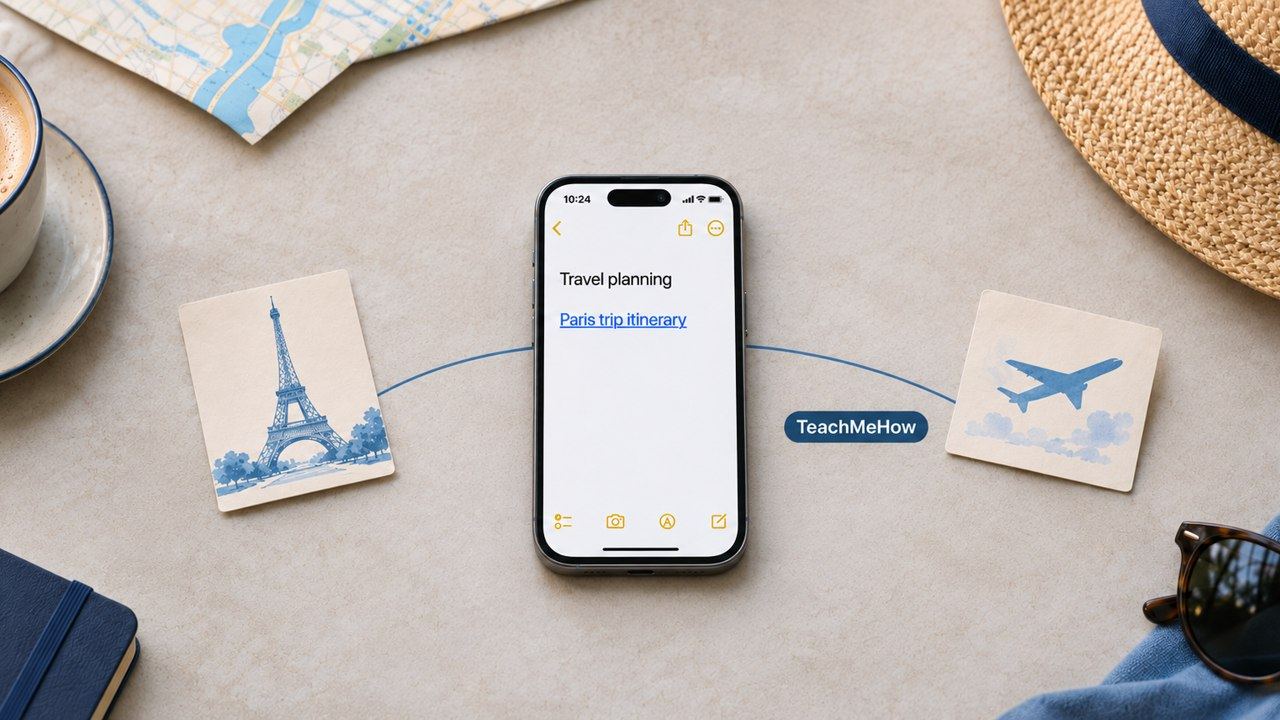
Make a tappable index of related notes, choose clear link labels, and check that links open the intended destinations.
Follow these steps at your own pace. Check product terms and prices directly with providers before purchasing.
Open the note that should contain the link. Type two greater-than signs, >>, then begin typing the destination note’s title. Tap the correct suggestion to insert a link. For a custom label, select the words you want to make tappable and use Add Link from the editing menu.
Give the index and its destination notes clear names
If you are planning a trip, start with an index called “Weekend in Monterey.” Make separate notes for bookings, restaurants, and a packing list. Titles such as “Monterey – parking and hotel” make selection easier than three tabs all called “Travel.” You can keep reference details in different notes and open them directly from the index.
Decide what to include in the index itself. Put the basic dates or next action at the top, then link to the longer notes. A reader should be able to tell whether they need “Hotel parking instructions” or “Restaurants near the aquarium” before tapping. If you only need the index regularly, pin it to the top of its folder.
Make and test the links
1. Prepare the destination note first
Give the note a distinctive title and add enough content to recognize it when it opens. If you have several versions, put a year or location in the title. Return to the index note and choose a spot for the link.
2. Use the shortcut for an ordinary note link
In the body of the index, type two greater-than signs and start typing the target’s title. Choose the desired note from the suggestions. Open the resulting link and verify the heading and first line on the destination. Return to the index before making the next link.
3. Name a link for its purpose
In the text editing menu, use the forward arrow if needed to find Add Link. Search for the note title, select it, then use the note title or your own label. Use a custom label such as “Packing list” if the full file name contains details the reader doesn’t need. Apple says links that use the destination title update their displayed name when that title changes.
4. Add a return route where it helps
In a destination note that you often open directly, add a short “Trip overview” link back to the index. Check that the return link takes you to the expected note. You can leave a frequently updated checklist in its own note while making it easy to reach from the overview.
Fix broken or confusing paths
| Symptom | Check |
|---|---|
| The wrong note opens | Compare similarly named notes, then edit or recreate the link to the correct one. |
| You see only the typed characters | Try the Add Link option and check that the destination note is available. |
| You need just one section of a long note | If your Notes version offers Link to Section, apply heading styles to the destination first and choose the section in the link menu. |
| A collaborator can see the index only | Review sharing and access for each target note separately. |
Separate navigation from access
A link is a way to reach a note. Sharing an index doesn’t automatically grant permission to every note it references. If a travel companion should see the meal plan and itinerary only, share those notes and the index with the intended permissions, then have them try one link. Keep any personal reference in its own unshared note.
Give the index one quick test before you rely on it away from home. Open the most time-sensitive destination from the top of the index, return, and open the next item. If you had to remember an abbreviation or guess which link was current, rename it. For a group of notes you want to find automatically as they are created, use tags and a Smart Folder as a separate way to browse.
Audit links after a project changes
If you replace a packing note with a new one for a later trip, the old link may still lead to the previous note. Tap it from the index and read the destination date. To keep the old trip record, leave the original link alone and create a new index for the new dates. To reuse an active index, replace the old link and test the new one.
Comments
Read or join the discussion.