How to Fix Apple Notes Not Syncing Between iPhone and Mac
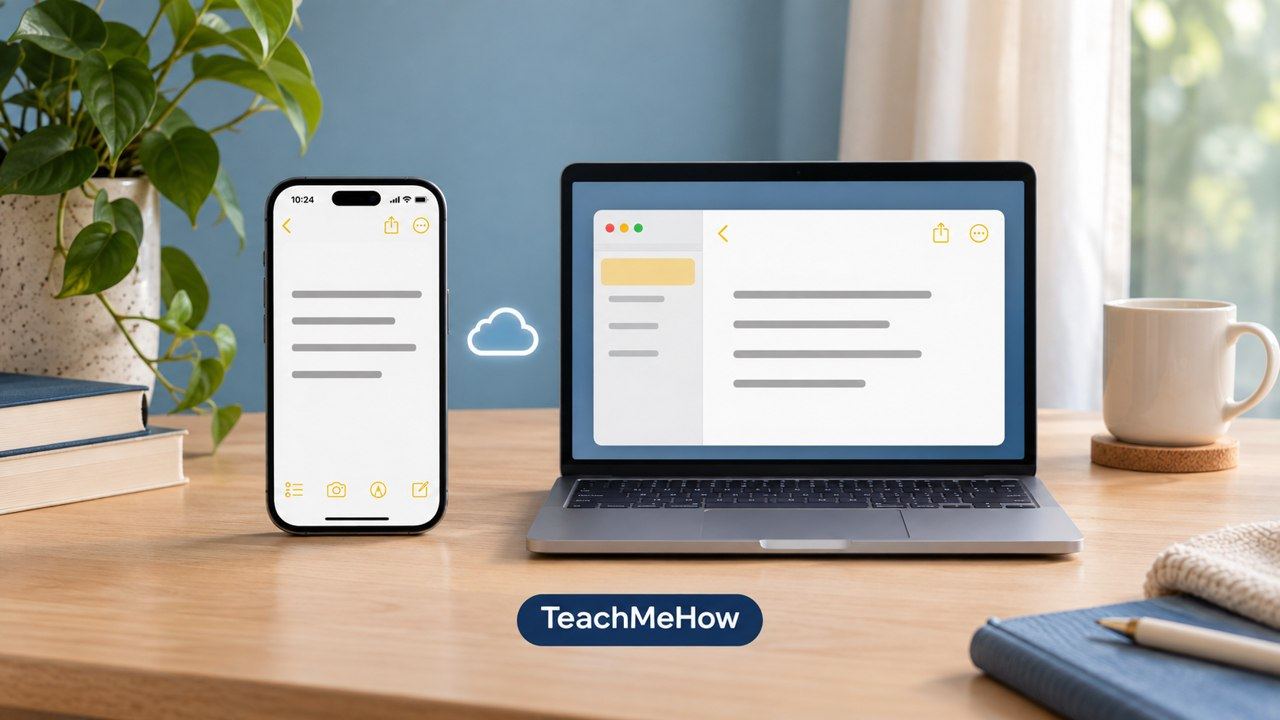
Compare where an Apple Note is stored, check iCloud sync on both devices, and use a test note to isolate the problem.
Follow these steps at your own pace. Check product terms and prices directly with providers before purchasing.
If Apple Notes is out of sync between iPhone and Mac, check that both devices use the same Apple Account and that Notes syncing is enabled on each. Then verify that the missing note is in an iCloud folder. Make a plain test note under All iCloud and use iCloud.com as a reference point to see which device isn’t receiving the change.
Identify where the missing note lives
Open Folders on the iPhone and check the heading above the folder. A note under On My iPhone is stored locally. A note under Gmail belongs to that mail account. To compare iPhone and Mac using iCloud Notes, first look in the iCloud section on both devices. You may see several folders named Notes, so check the heading before deciding that two lists should match.
Avoid moving a large collection as a test. Create a plain note called “Sync check 2:15” under iCloud and enter one word. A test without attachments gives each device a simple item to exchange. Keep the original notes where they are until you know which account has the only current copy.
Check the account and follow one test note
1. Compare the signed-in accounts
On iPhone, open Settings and tap your name. On Mac, open System Settings and look at your Apple Account at the top of the sidebar. Verify that the two devices use the same account address before changing any Notes setting.
2. Verify iCloud Notes on the iPhone
Go to Settings, your name, then iCloud. Under the list of apps saved to iCloud, use See All or Show All as needed, then open Notes. Confirm that Sync this iPhone is on. Return to Notes and choose All iCloud.
3. Verify iCloud Notes on the Mac
Open System Settings, select your name, then iCloud. Under Saved to iCloud or Apps Using iCloud, open Notes and confirm Sync this Mac or the corresponding Notes control is enabled. Go back to the Notes app and choose All iCloud in the sidebar.
4. Make or find the test note in iCloud
On the phone, create the test note in an iCloud folder. Allow it to sync while the devices are online. Look for its exact title on the Mac. If it’s absent, open Notes on iCloud.com from a browser signed in to the same account, provided web access is available to you. Confirm whether the same note appears there.
5. Compare edits in both directions
Once it appears on both devices, add a second short line on the Mac and see whether it appears on iPhone. If an older note contains attachments or uses features from a newer software release, test it separately after the plain note succeeds.
Interpret the results
| Test result | Where to focus |
|---|---|
| iCloud.com has the title and the iPhone does too | Check the Mac’s account, Notes setting, network access, and folder. |
| iCloud.com and Mac agree but iPhone is missing it | Check the iPhone’s sync setting, then restart the iPhone if needed. |
| The old note appears only under On My iPhone or in Gmail | Decide whether to copy or move it to an iCloud folder after checking any attachments. |
| One note was deleted instead of merely unsynced | Check Recently Deleted for that note. |
Keep shared notes separate from sync tests
Sync keeps the same account’s notes updated across your devices. If two people use different Apple Accounts, invite the other person to collaborate instead. If the plain test note syncs and a specific note remains missing, look for its exact title in every account and folder. It may have been moved or renamed, or you may be comparing a shared note with a copied one.
When iCloud.com is unavailable, compare whether the phone receives a plain iCloud note created on the Mac and whether the Mac receives one from the phone. If neither arrives, confirm both devices are online, revisit the account settings, and check for temporary iCloud service issues. Once the test passes, open one real note on both devices and verify that the latest line appears.
Apple’s steps when iCloud notes don’t appear on iPhone
Confirm where future notes will go
Once syncing works, create your next real note from within the intended iCloud folder. Check that it appears on both devices before making it your only copy of an important reference. If you often create notes from outside the app, review the default Notes account on your phone so you know where a new note will be saved.
Comments
Read or join the discussion.