Place an Aqara sensor where it measures the room, set separate temperature and humidity alerts, and test that each reaches your phone.
Quick Answer
Pair an Aqara Temperature and Humidity Sensor, watch a normal day of readings, and build separate phone alerts for high humidity and temperature changes. Test each rule by observing a threshold crossing.
Compare your options
| Option | Best for | Trade-off |
|---|
| Sensor with existing compatible hub | Adding another room | Check the sensor is within reach of that hub |
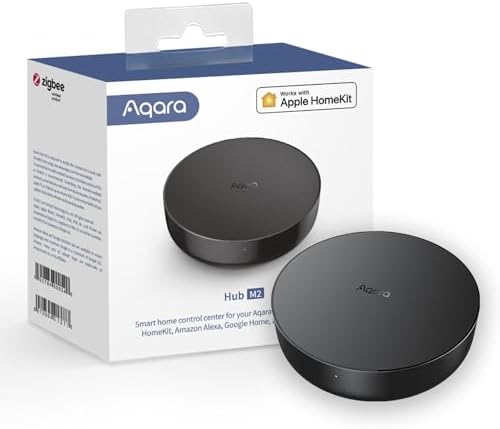
| Sensor with Aqara Hub M2 | Starting an Aqara setup | Allow space and power for the hub |
Step-by-step installation
1. Pair the sensor beside the hub
Open Aqara Home and confirm your compatible Aqara hub is online. Add the Temperature and Humidity Sensor as an accessory, select the hub and follow the pairing prompt. Name the accessory for the spot you intend to monitor, such as Upstairs Hall. Check that both a temperature and a relative humidity reading appear.
2. Choose a spot that represents the room
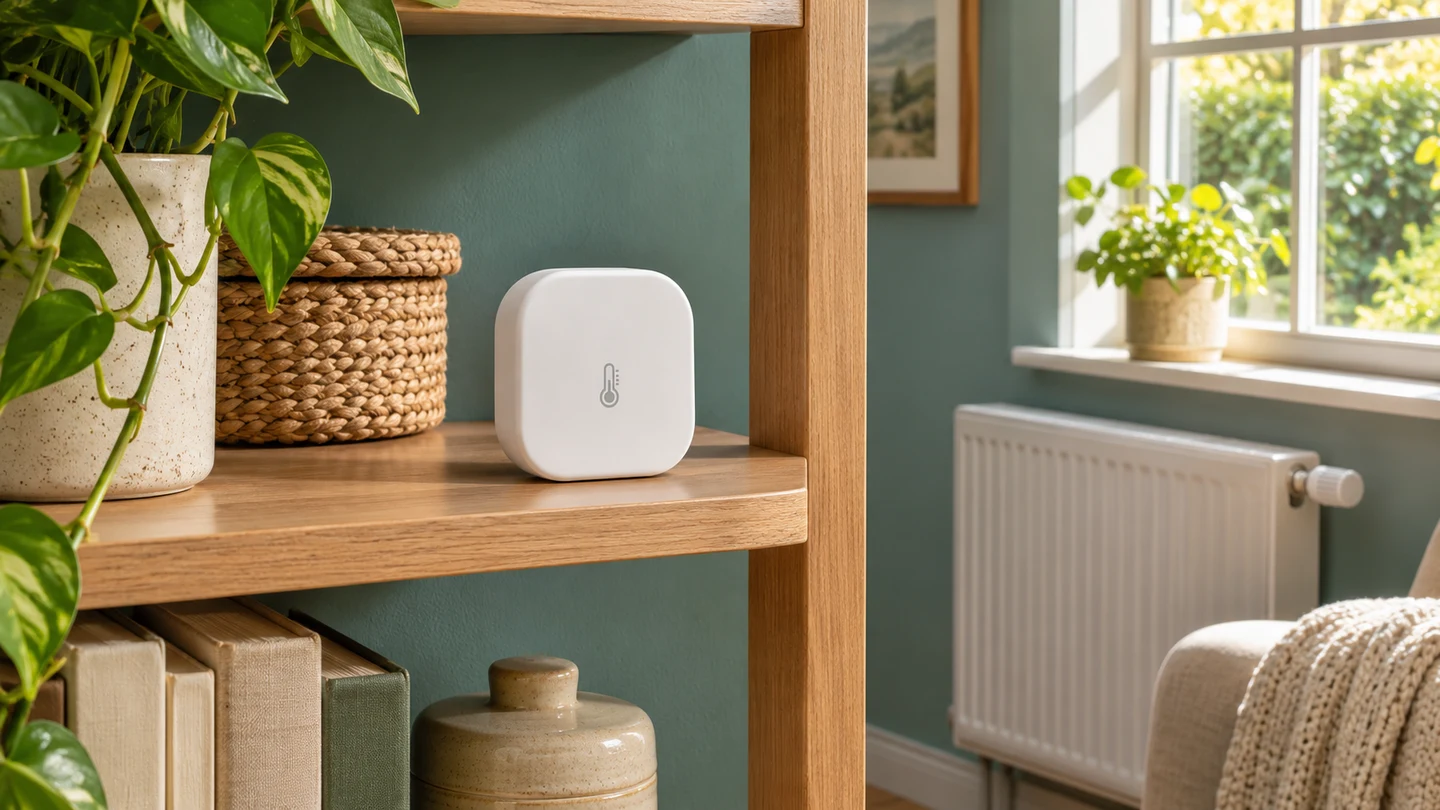
Try an open interior shelf at the height you care about. Keep air moving around the sensor and leave the battery cover accessible. A windowsill warmed by the afternoon sun or a shelf above a radiator can read several degrees differently from the rest of the room. Test the spot before using the adhesive.
3. Watch one normal cycle
Let the sensor settle, then look at its history as the room heats, cools or changes with daily use. If a reading spikes only when sunlight hits the shelf, move the sensor and compare the next cycle. Note the usual range and confirm that the app is displaying your preferred temperature unit.
4. Create one alert for each condition
In Aqara Home, create an automation with a sensor condition as the trigger and a push notification as the action. For example, choose humidity rising above your chosen threshold and name the alert Laundry room humidity is up. Use a separate rule for temperature so the notification tells you which reading changed. Enable phone notifications for Aqara Home.
5. Test a crossing and restore the final threshold
Temporarily set the threshold close to the current reading. Watch for a normal change that crosses it in the selected direction, then compare the sensor history, automation log and phone notification. An existing reading above a threshold may not trigger a new crossing. Restore the threshold you want to keep after the test.
Tools and buying tips
- This sensor reports readings in the app. Choose a display-equipped model if you need to read the room at a glance.
- A phone, compatible hub and dry indoor shelf are enough to test the setup before mounting.
Which setup fits your home?
| Use case | What to do |
|---|
| Laundry room | Place the sensor outside the direct plume from wet laundry or a vent. Compare readings before and after a normal laundry cycle. |
| Bedroom | Use an interior shelf away from the sleeper and the window. Check the overnight trend before choosing an alert level. |
| Two floors | Name the sensors by location so a notification identifies the room that needs attention. |
Common mistakes
- Choosing a threshold so close to the usual range that it generates frequent messages.
- Mounting in direct sun and interpreting the local hot spot as the room temperature.
- Checking only the sensor history when phone notifications are disabled.
Installation checklist
- Both readings appear in the app
- Location tested through normal room use
- Each rule has a distinct name and action
- Test notification received and final thresholds restored
Bottom Line
Use the room’s own history to choose a threshold that tells you something worth acting on. When an alert arrives, its name should tell you both the room and the condition.

Comments
Comments are reviewed before they become public.
Sign in with Google to leave a comment.
Sign in with GoogleNo approved comments yet. Be the first to start the discussion.