How to Use Track Changes to Proofread in Microsoft Word
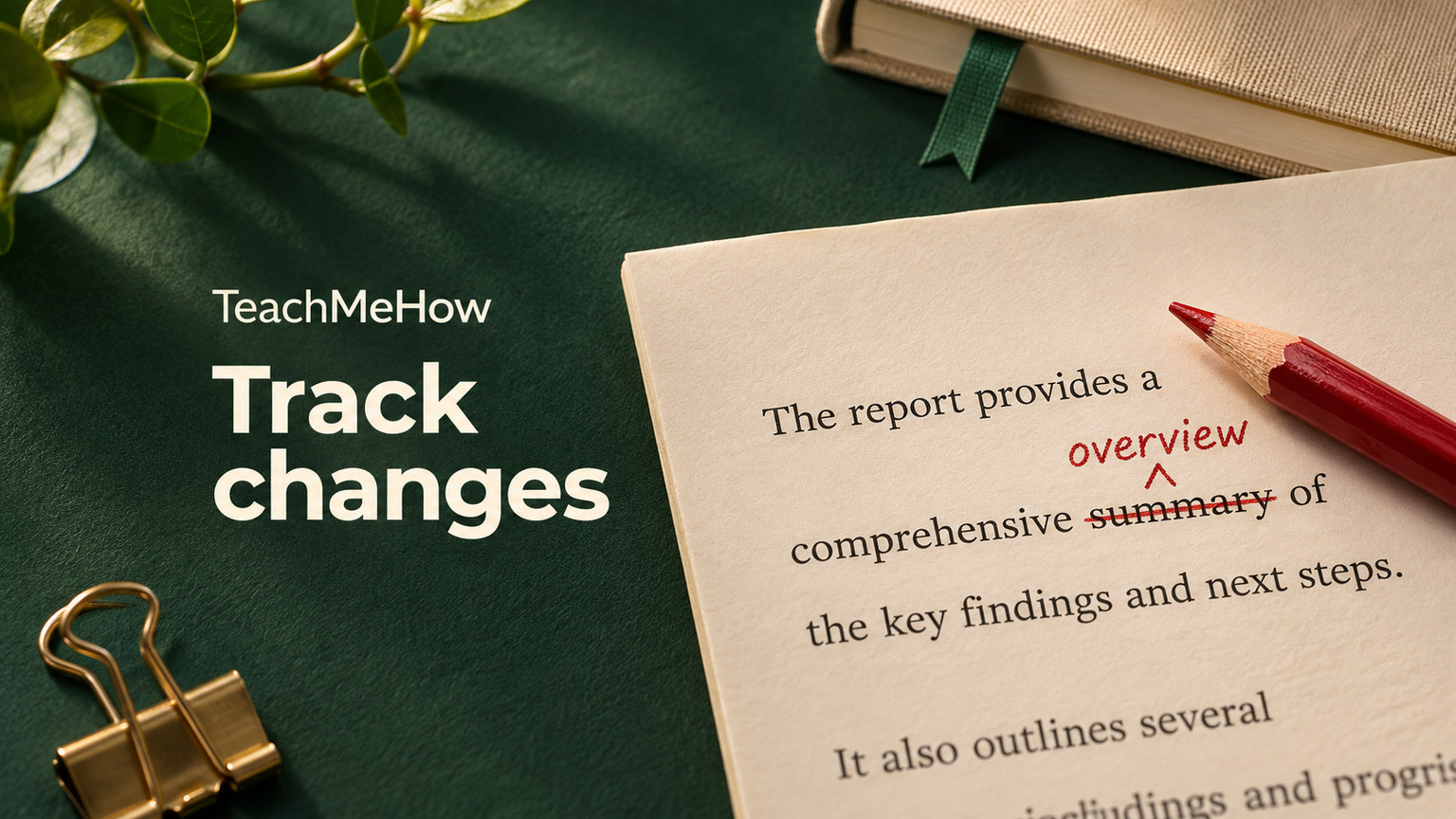
Turn on Track Changes in Word, mark corrections the author can accept individually, and check that the edits survive the handoff.
Follow these steps at your own pace. Check product terms and prices directly with providers before purchasing.
Quick answer
In Word for Microsoft 365 on Windows, open Review → Track Changes, choose For Everyone or Just Mine, then switch the display to All Markup. Edit the sentence itself. Leave the changes pending so the author can decide which ones to keep.
Choose the copy the author will review
If the author sent a file and expects an attachment back, save a working copy such as Program-review-Jo.docx before editing. If the team is already collaborating in one shared Word file, work in that file with the owner’s permission. An emailed copy would put your edits somewhere the other reviewers may never see.
Make the first correction and check it
- On Review, open the Track Changes menu. Choose Just Mine for your own proofreading pass, or For Everyone when the team wants subsequent edits by all contributors tracked. On a compact ribbon, expand Tracking first.
- Change the display to All Markup. Find a real correction, such as a doubled “the,” and delete only the extra word and its space. The deletion should appear inline or in a revision balloon, depending on your display settings.
- Select a misspelled name and replace it only if the approved spelling is known. For an uncertain detail, highlight the relevant phrase, choose Review → New Comment, type the question and post it.
- Keep unrelated edits separate. Replacing an entire paragraph to fix a comma makes the author review the whole paragraph. For a repeated style decision, record the approved spelling in a project style sheet.
Why the markup can look different
| What you see | What to check |
|---|---|
| A line in the margin | Simple Markup can collapse the details. Select All Markup to read the replacement. |
| A fresh edit appears as plain text | Check that tracking is on and that Show Markup includes insertions and deletions and all reviewers. Tracking begins when enabled. |
| Only an older copy shows the original wording | Save both versions. You can compare the Word drafts to recover an untracked redline. |
Hand back a reviewable file
Save, close and reopen the exact file you intend to share. Go to your first correction and confirm the author can see both the original text and the proposed edit. Leave approval to the person making the final decision. For a client who works in a shared Google Doc, use Suggesting mode in Google Docs.
Comments
Comments are reviewed before they become public.
Sign in with Google to leave a comment.
Sign in with GoogleNo approved comments yet. Be the first to start the discussion.