How to Type Accented Letters in Windows 11 With PowerToys Quick Accent
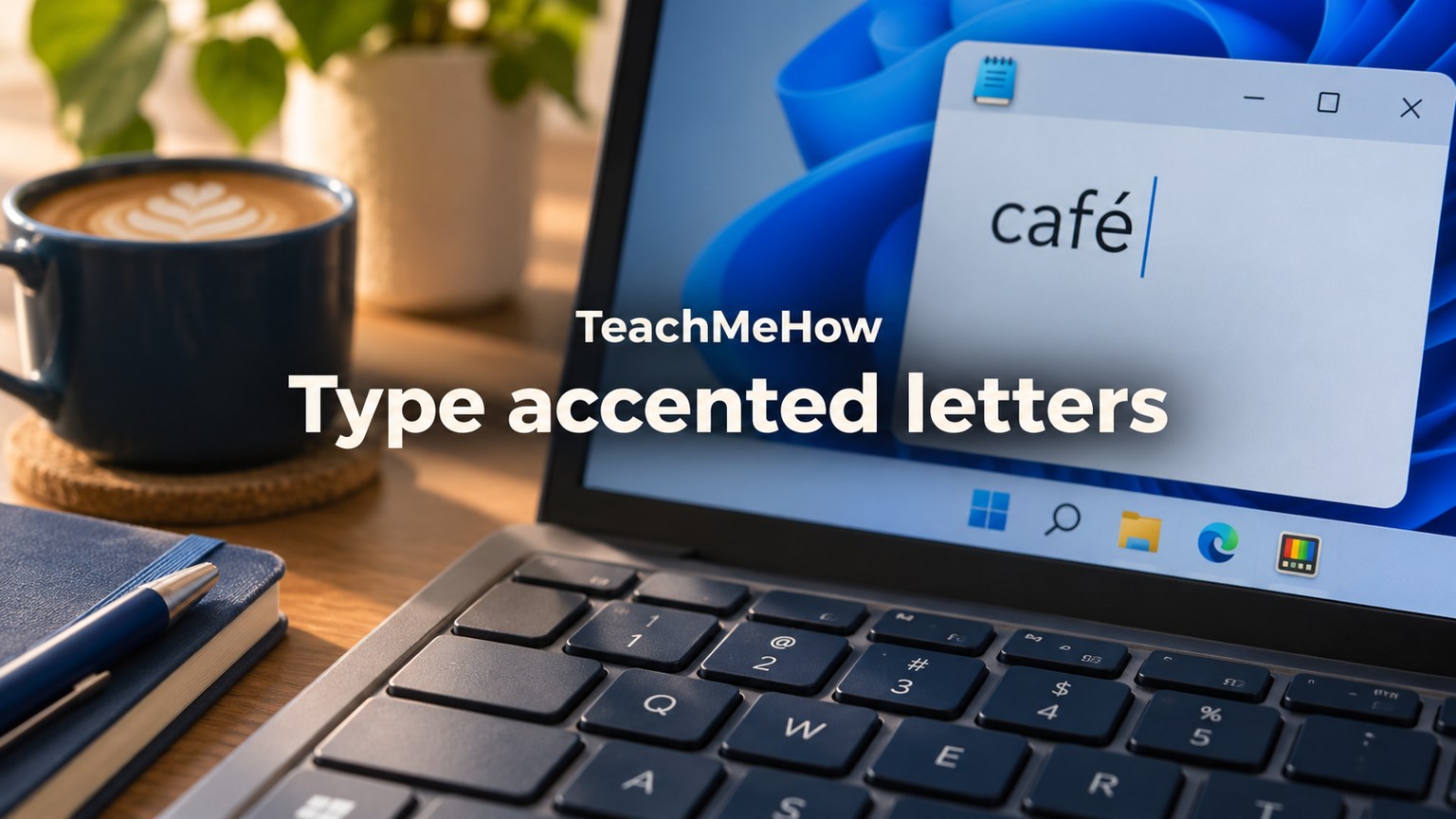
Type characters such as é, ñ, and ü using a standard Windows keyboard. Choose language sets, adjust activation timing, and test the result in a real text field.
Follow these steps at your own pace. Check product terms and prices directly with providers before purchasing.
Quick answer
Enable Quick Accent in PowerToys Settings. With the common trigger-key mode, hold the base letter, press the configured trigger such as Space or an arrow, and keep the letter held while choosing an accented form. Release to insert it. If your settings use Press and hold the letter, wait for the picker instead of pressing a separate trigger.
Set up a short list for the languages you write
Open Microsoft PowerToys, or install it from the Microsoft Store first. Select Quick Accent and turn it on. Check the Activation key setting before testing any instructions. In the Characters section select the languages or character sets you need. A shorter list makes frequent accents easier to choose. If a letter is missing, return here before changing the Windows keyboard layout.
Try three words that require different choices, such as café, mañana, and über. Enable French, Spanish, and German as appropriate for that practice. Begin in a blank note with a visible insertion point. That avoids accidentally sending a message while you learn how the activation and release gesture feels.
Type café with the trigger-key method
- Type caf in the note. Press and hold E rather than typing and releasing it as an ordinary final letter. While it is held, press an active trigger. The default trigger setting accepts a left or right arrow or Space.
- Wait for the accent strip to appear. Keep the base letter held and use the supported arrow or space navigation to highlight é. Look at the direction of the accent so you do not select è by mistake.
- Release the keys once the intended character is highlighted. The final word should read café with exactly one final letter. Repeat with N for ñ and U for ü when their character sets are enabled.
- Copy the completed word into a second editable field and compare the spelling. This checks whether you inserted the intended character and whether the destination displays it correctly.
Use the press-and-hold method if it suits you better
On builds that offer Press and hold the letter, choose it under Activation key. Quick Accent initially enters the base character. Continue holding until the picker opens, select the desired variant, then release the letter to replace the base character. A quick tap still types the ordinary letter. Test the mode with a normal word and an accented word before relying on it for a long paragraph.
| Symptom | Adjustment to try |
|---|---|
| An ordinary letter and a space appear | Inspect the activation mode, trigger key, and input delay. Try the sequence slowly in a blank note. |
| The picker opens during ordinary typing | Increase the delay or choose a trigger that interferes less with your typing rhythm. |
| The needed accent never appears | Inspect the selected language sets and the character reference guide if your build provides it. |
| Too many variants appear | Keep the character sets you actually use and repeat the same word. |
Check names before pasting them into a form
Two accents can look similar in a small typeface. For a person’s name, compare the finished entry with the spelling they supplied. If you are filling a form with separate first- and last-name boxes, check that the insertion point is still in the intended box after using the picker. If you need to move the result from a styled document into a clean form, paste the text without its formatting.
Quick Accent requires PowerToys in your signed-in Windows session. It does not require replacing an ordinary letter key. If the goal is to make a physical key behave as another key on every press, use PowerToys Keyboard Manager instead. When a physical key is unavailable entirely, open the Windows On-Screen Keyboard for a separate input method.
Keep the accents when moving between apps
After typing a name correctly in a note, paste it into the real destination and check the visible result before submitting. If a form rejects the name, read its character requirements. Switching the accent picker to a different language will not fix a field that accepts only a restricted alphabet. Keep the properly spelled original in your own working document so a limitation in one form does not become the spelling used everywhere else.
Keep the feature convenient for everyday typing
Try your chosen activation in the mail editor, browser form, and document app where you actually write. If the toolbar covers the line you are checking, change its position in Quick Accent settings. Microsoft describes trigger-key and long-press activation, language sets, and timing controls in its Quick Accent instructions.
Comments
Comments are reviewed before they become public.
Sign in with Google to leave a comment.
Sign in with GoogleNo approved comments yet. Be the first to start the discussion.