How to Preview Files in Windows 11 File Explorer With PowerToys Peek
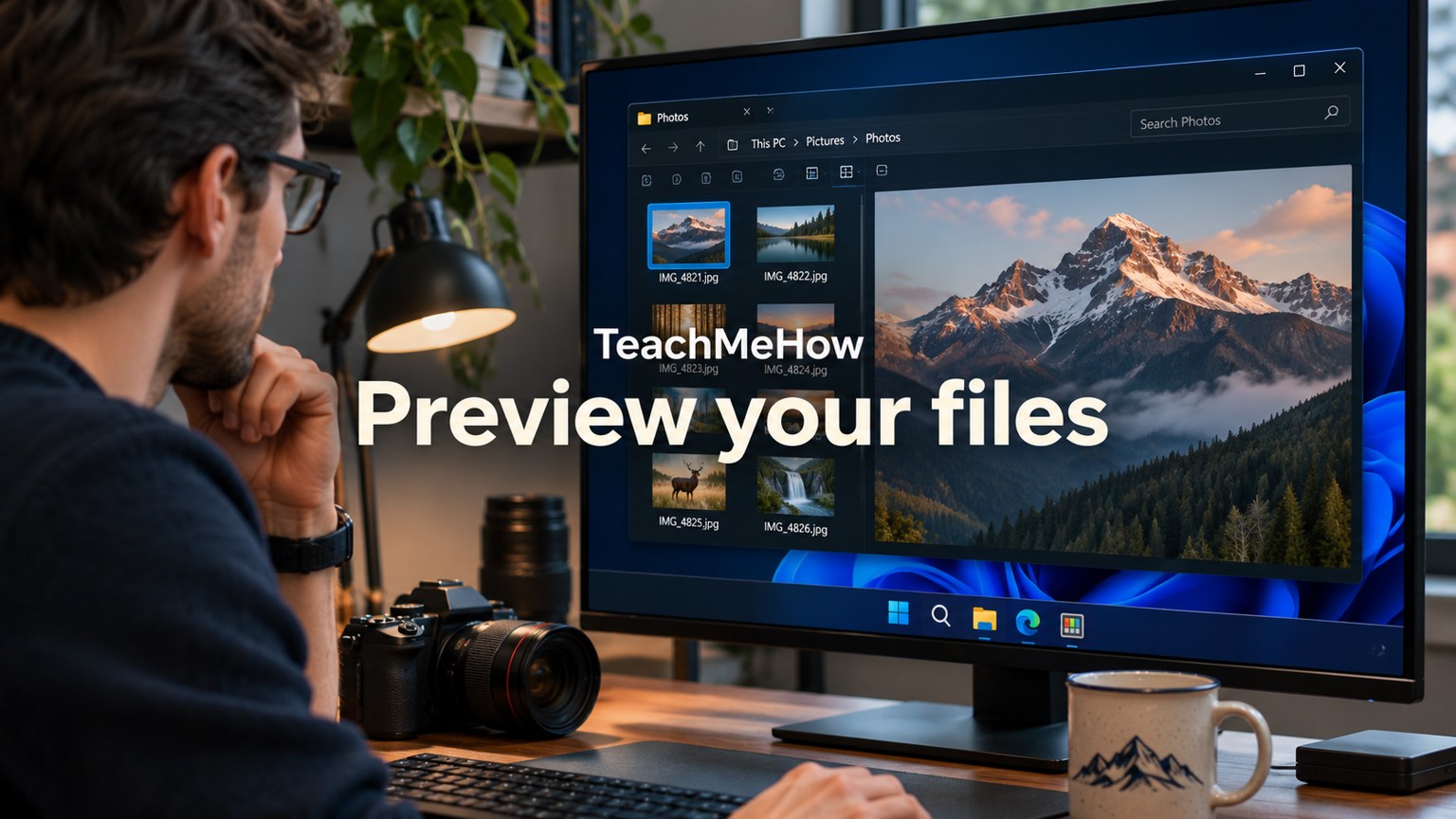
Preview selected photos, PDFs, and other files from Explorer. Check the current Peek shortcut, browse a shortlist, and open the right file for editing.
Follow these steps at your own pace. Check product terms and prices directly with providers before purchasing.
Quick answer
Enable Peek in Microsoft PowerToys, select a file in File Explorer, and press the activation key listed under Peek settings. Space is the default starting with PowerToys 0.95. If you upgraded or customized the shortcut, use the one your settings show. Press Esc to close the preview.
Use Peek when names and thumbnails are insufficient
Imagine receiving five PDFs called Estimate, Estimate revised, and similar variations. You need the version containing an updated delivery date. Explorer’s small thumbnail and modified-time column can narrow the list, but neither establishes what is inside. Peek lets you inspect the files in sequence and open the right one in its usual application once you have identified it.
Install Microsoft PowerToys from the Microsoft Store if needed. Start PowerToys, select Peek in its settings, and make sure the utility is on. Use a local folder containing a familiar JPG and a plain text document for your first test. This gives you known files to compare against if the file you actually want uses a different format or is unavailable locally.
Open a preview from the file list
- Open the folder in Explorer and single-click the file name or icon. The selection should be in the file list. If the cursor is in the search box or a filename is being edited, Space can insert a space instead. Finish or cancel that edit first.
- Press the configured Peek shortcut. Check the filename in the preview and find a distinctive detail inside the file, such as a date, logo, or final paragraph. A preview is a viewing step. Use the regular application for editing.
- To inspect only a shortlist, close the preview, Ctrl-click the files in Explorer, then open Peek again. With multiple files selected, navigation stays within that selection. With one selected, you can move through files in the folder.
- Use the arrows for compatible previews. In interactive previews such as a PDF or text file, arrows may scroll the content. Use Alt + Left or Alt + Right to switch between files from inside those previews. Esc or Ctrl + W closes Peek.
Choose what should stay in place
Drag the preview window where you can see it beside the folder, then size it so the text or photo is useful. The pin in Peek’s title bar preserves that position and size as you move to the next file. This is different from keeping the preview in front of other applications. For stacking behavior, check Peek’s always-on-top preference or see how PowerToys pins an ordinary window.
| Problem | Check first |
|---|---|
| Pressing Space only adds a character | Make sure focus is on a selected file and read Peek’s configured shortcut. |
| Arrows move inside a PDF | Use Alt + Left or Alt + Right to move between previews. |
| Only an icon or file details appear | Try a known local image or text file. Preview support and content vary with type and size. |
| The right file opens in an unexpected editor | Peek uses the file’s default app when you choose Open with or press Enter. Inspect that association separately. |
Use a shortlist to compare a delivery with its source
Select just the full-size photo and the export you plan to send, then open Peek. Switching between two selected items avoids accidentally comparing the export with a third shot taken seconds later. Use a detail that genuinely distinguishes them, such as a sign in the corner or the orientation of a label. If you need the exact file size or dimensions, read the metadata for the selected file after you finish the visual comparison.
Compare content before taking a batch action
For photos, compare an original with its smaller delivery copy at a useful zoom. Check whether details at both edges remain visible. To prove an exact pixel dimension, use the file’s Properties details in Explorer as well. The guide to batch resizing without cropping explains which settings can change the edges of an image.
For documents, read beyond the first page if several versions share a cover. Open the matching file with Enter only after checking its filename and a meaningful interior detail. If you are merely comparing, close Peek without deleting or moving anything. Microsoft documents the current default key, supported previews, navigation, and pin behavior in its PowerToys Peek guide.
Comments
Comments are reviewed before they become public.
Sign in with Google to leave a comment.
Sign in with GoogleNo approved comments yet. Be the first to start the discussion.