How to Keep a Window Always on Top in Windows 11 With PowerToys
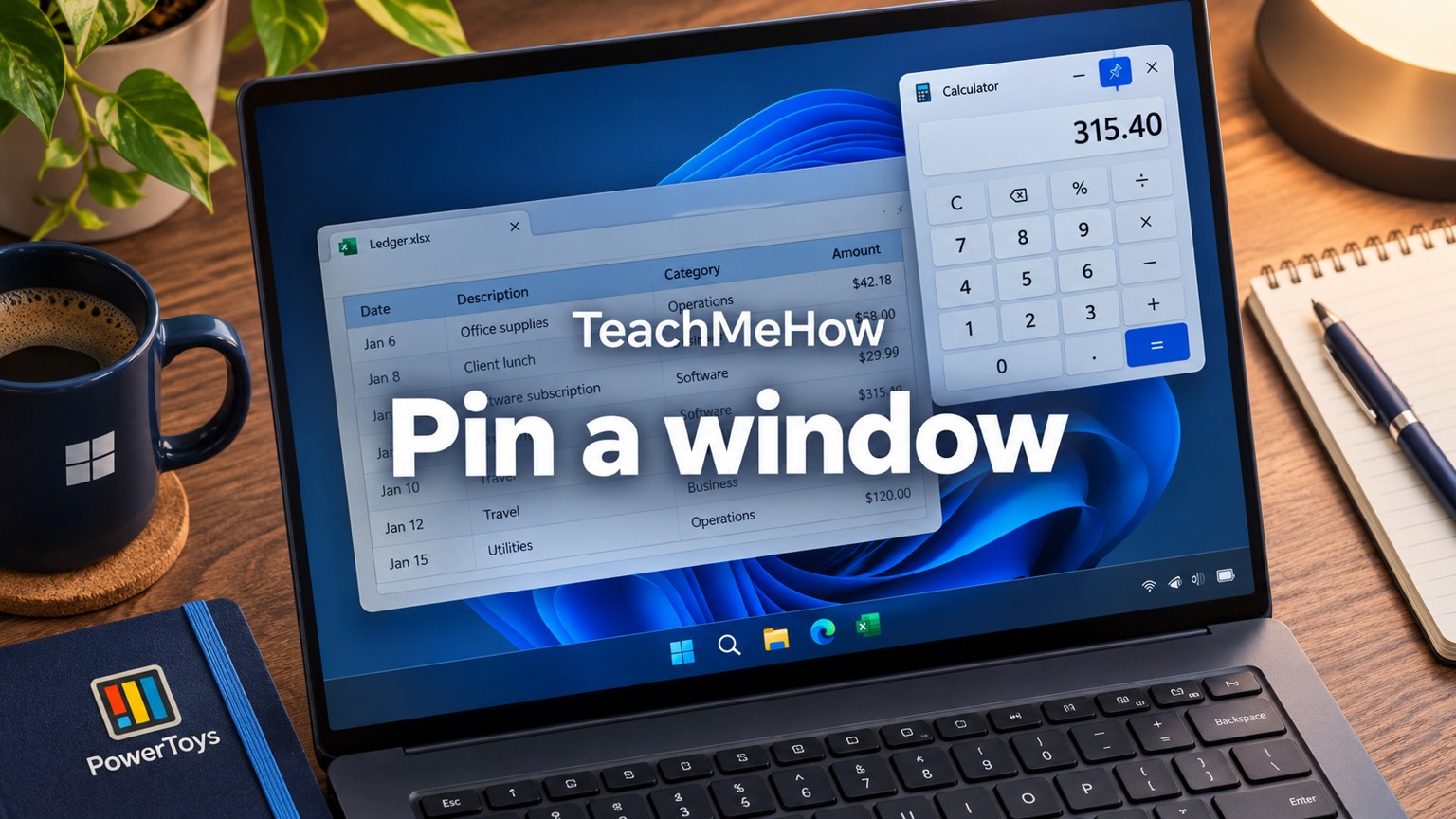
Pin a calculator, note, or reference window above another app, keep typing in the window underneath, and unpin the right window when finished.
Follow these steps at your own pace. Check product terms and prices directly with providers before purchasing.
Quick answer
With Microsoft PowerToys running, select the window you want to keep visible and press Windows key + Ctrl + T. Click a different window to test it. The first one should remain above it while the second receives your typing. To unpin, select the pinned window and press the same shortcut again.
Choose the window that should remain visible
For example, suppose you are entering totals from Calculator into a spreadsheet. You want Calculator to remain in a corner after you click a cell. Activate Calculator before using the shortcut. If the spreadsheet is active, Windows will apply the pin to the spreadsheet, which can hide exactly the reference you wanted to see.
Install Microsoft PowerToys from the Microsoft Store if you do not have it. Open PowerToys Settings, find Always On Top, and turn the utility on. Check the activation shortcut shown there. The shortcut is configurable, so a machine you have used for a while may have a different combination. PowerToys needs to be running for its shortcut to act.
Pin and test with two ordinary windows
- Open your reference and your destination app. Put the larger app where you want to work. Resize the reference so it covers a part of the larger window that you do not need, such as unused space beside a short column of figures.
- Click the reference window’s title bar to activate it. Press the configured Always On Top shortcut once. If its border option is enabled, a colored border identifies the pinned window. A sound is optional.
- Click a harmless editable area of the second app. Type a short test value or move through a row with the arrow keys. You should see the reference while the second app reacts to your input. That verifies both stacking and keyboard focus.
- To end the pin, click the reference again and repeat the shortcut. Click the larger window to see if it now covers the reference. Closing the pinned window also ends that pin.
Arrange the pin so it does not block your work
A pin keeps the whole window in front, including controls you may never use. Place it away from the Save button, search field, or last visible spreadsheet column. If a reference is a long page, scroll it to the exact paragraph before pinning. When you only need a changing number inside a large dashboard, keep a live crop of that portion of the window so the rest of the dashboard does not cover your work.
| Symptom | What to try |
|---|---|
| The other window was pinned | Activate that window and toggle it off. Then activate the reference before pinning. |
| The shortcut works but no border appears | Test the stacking with another window. Inspect the border option, color, and thickness in PowerToys. |
| It works in a normal note but not in a particular app | Check the excluded-applications list, shortcut conflicts, and the option to suppress activation in Game Mode. |
| You keep clicking the wrong window | Reduce overlap or put the two apps into separate zones. |
Try one pin before adding another
For a price comparison, put one short reference list above a larger spreadsheet and enter two sample rows. If you find yourself moving the reference after every entry, narrow it or move it to the other side of the grid. Pinning a second large window introduces another overlap to manage. For regular work with two large sources, a layout with fixed places for each window may be easier than continually changing which one sits on top.
Keep a visible note while continuing to type elsewhere
Try pinning a note containing three checklist items. Click a draft message and type the first item’s wording. If the note changes instead, its typing focus never left. Click inside the draft body and retry. This distinction is useful during presentations too: a visible reference is still a real window that may appear if you share your entire display.
For a permanent side-by-side work area, create a custom FancyZones layout. For one reference that only needs to be in front for a minute, the pin is quicker. Microsoft lists the default shortcut, border options, excluded applications, and Game Mode behavior in its Always On Top reference.
Comments
Comments are reviewed before they become public.
Sign in with Google to leave a comment.
Sign in with GoogleNo approved comments yet. Be the first to start the discussion.