How to Remove Duplicates in Google Sheets Based on Two Columns
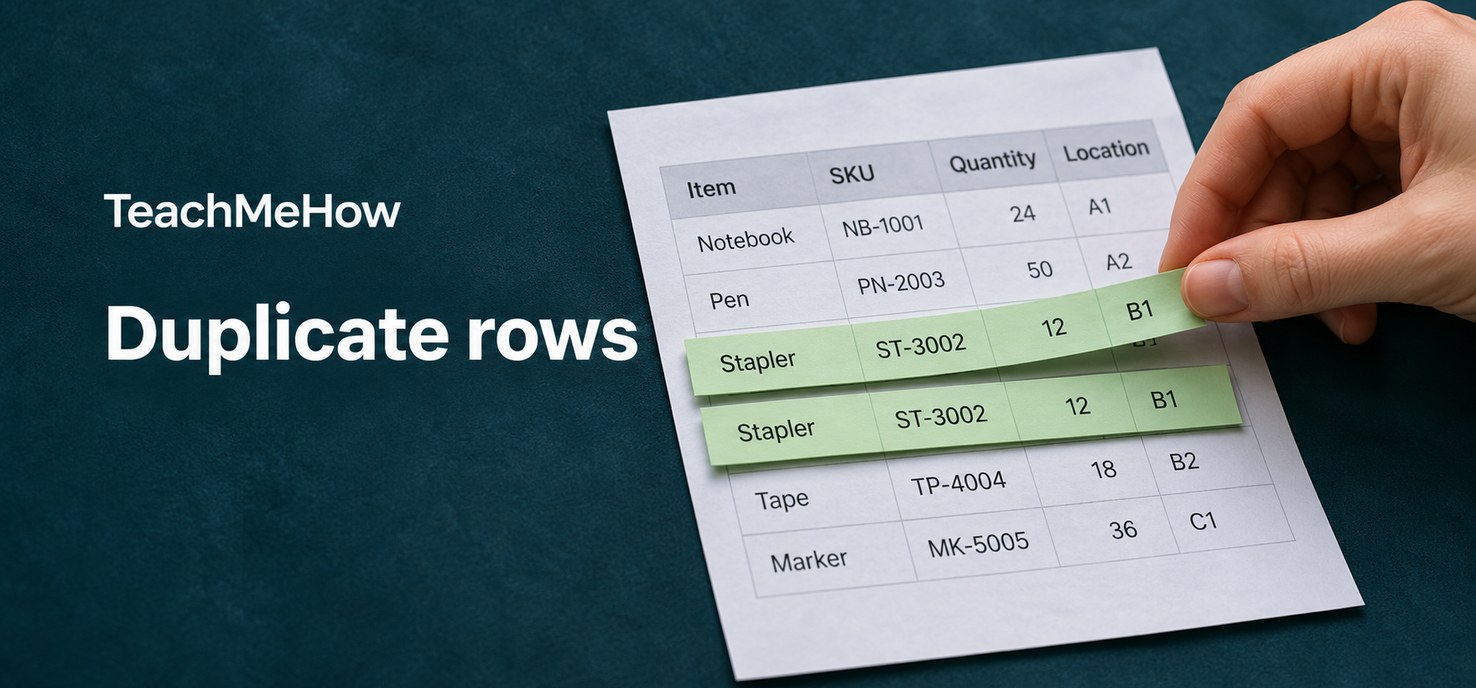
Compare an order number and item code together, preview repeated pairs, and remove duplicate records while keeping the rest of each row aligned.
Follow these steps at your own pace. Check product terms and prices directly with providers before purchasing.
Quick answer
Select the whole table on a working copy. In Data → Data cleanup → Remove duplicates, indicate whether the range has a header and select only the two columns that identify a record. Sheets compares the pair from each row. This lets one order have several different items.
Decide what makes two rows the same
Suppose an import should contain one row per order and item code. Order 104 can contain both a pen and a clip. A clip can also appear on order 105. Only a repeat of the same order and item is a candidate. If the business records separate shipments or line items with the same pair, include the shipment or line ID in your rule before removing anything.
For an event that allows one signup per attendee, use the attendee ID and event together. If people submit again to correct their RSVP, let them edit their original Google Form response to prevent repeat entries.
Try a four-record test
| A · Order | B · Item | C · Units | D · Note |
|---|---|---|---|
| 104 | CLIP | 4 | Morning intake |
| 104 | PEN | 2 | Verified |
| 104 | CLIP | 4 | Morning intake |
| 105 | CLIP | 1 | Shelf count |
Preview the matches
Duplicate the sheet tab and keep the original as a reference. On the copy, enter =COUNTIFS($A$2:$A$5,A2,$B$2:$B$5,B2) in E2 and fill through E5. Both copies of 104/CLIP show 2. The other rows show 1. Expand the fixed ranges for your own table. In a shared working sheet, use a personal filter view to inspect counts above 1. Inspect blank keys and pairs whose quantities, dates, or notes differ. Decide which record to retain or reconcile the differences before running the command.
Remove the repeated pair
- Remove the temporary counts from E after reviewing them. Select A1:D5, including Notes. Extend the selection through the last record and its last associated column in your own file.
- Open Data → Data cleanup → Remove duplicates. Mark that your data has a header row. In the column checklist select Order and Item. Leave Units and Note out of the comparison.
- Apply the command. The test should retain three data rows, including 104/PEN and 105/CLIP. Check those two near-matches as well as the surviving 104/CLIP row.
When the result is surprising
The tool treats case differences as matches. If uppercase and lowercase identify separate records in your system, keep those rows for a case-sensitive review. If apparent repeats survive, check the key columns for hidden spaces. For a recurring import with gaps, identify completely blank rows before comparing record counts. Google’s guide to the cleanup commands.
Comments
Comments are reviewed before they become public.
Sign in with Google to leave a comment.
Sign in with GoogleNo approved comments yet. Be the first to start the discussion.