How to Remove Blank Rows in Google Sheets and Keep Incomplete Records
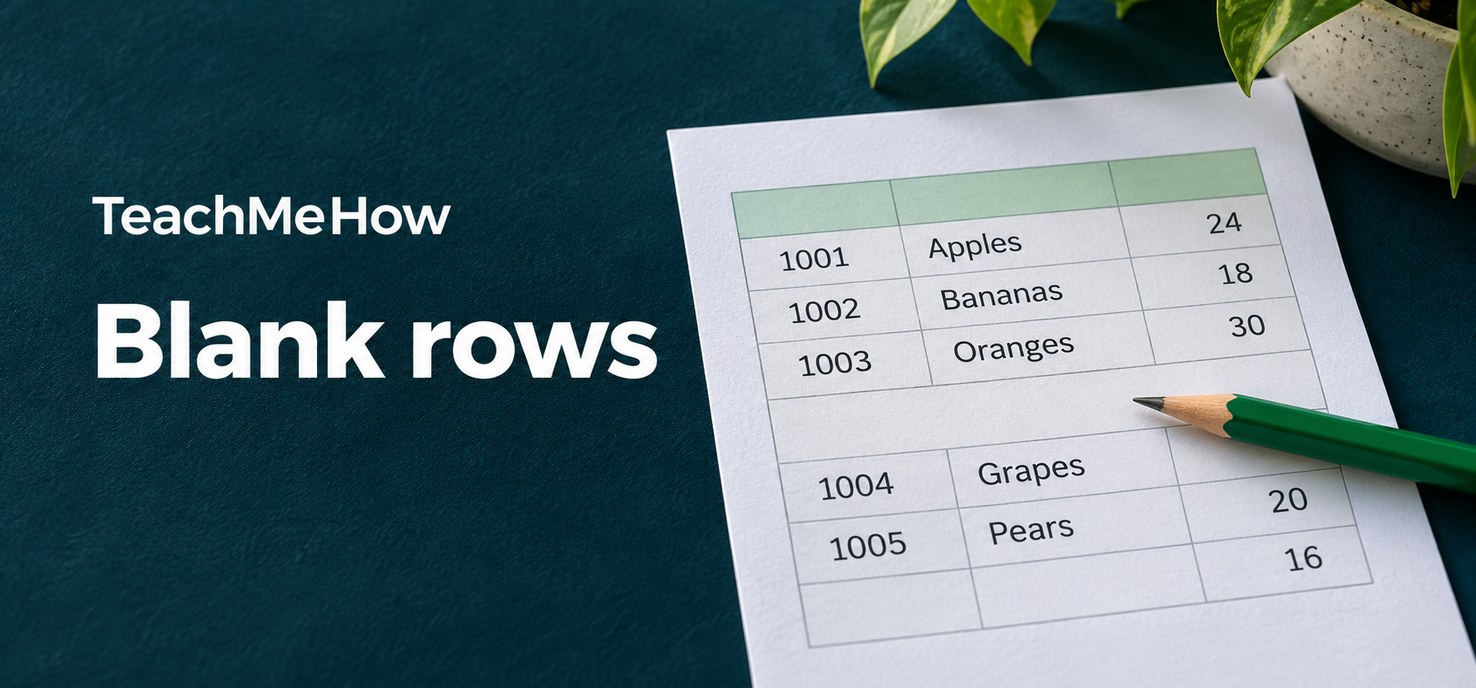
Check every column before removing a row. Build a gap-free copy that keeps records with a missing ID, a zero quantity, or a formula.
Follow these steps at your own pace. Check product terms and prices directly with providers before purchasing.
Quick answer
Test the entire record with
=COUNTA(A2:D2). A count of zero means the four cells contain no values. To get a gap-free table, filter for counts greater than zero. This retains an incomplete record even when its first cell is empty.
Set the boundary before checking rows
Duplicate the source tab and name the copy Working. Suppose A:D are Order, Item, Quantity and Notes. Use E for a temporary count. Extend the tested range if another column belongs to the record. If a second table, cell note or other material sits elsewhere on the same row, create the filtered output below instead of deleting worksheet rows.
Test five different kinds of rows
| Row | What A:D contain | Expected count | Decision |
|---|---|---|---|
| 2 | 104, Pen, 8, and an empty Notes cell | 3 | Keep |
| 3 | All four cells empty | 0 | Omit |
| 4 | Only a numeric zero in Quantity | 1 | Keep |
| 5 | Only “Check label” in Notes | 1 | Keep |
| 6 | Only a formula returning an empty string | 1 | Keep for review |
Create a clean table on its own tab
- In Working!E1 enter Filled cells. In E2 enter
=COUNTA(A2:D2)and fill it down through E6. For a real import, fill to the last record, including internal gaps. - Add a tab named Clean and copy the four column headings to A1:D1. Leave the cells below them clear. In Clean!A2 enter
=FILTER(Working!A2:D6,Working!E2:E6>0). Extend both ranges to the same final row when adapting the formula. - The example returns four source records in their original order. Check the zero quantity and the Notes-only record. The last row may still look empty because its source formula displays an empty string. Use the count on Working to see why it was kept.
If you need to delete the actual rows
For a small list, read the zero counts on Working and confirm each entire worksheet row is disposable. Right-click its row number and choose the delete-row command, starting at the bottom so earlier row numbers stay valid. For a long list, use the filtered output as a clean export. If you need an independent snapshot, copy that output and paste values only into another tab. The snapshot contains the displayed data values and loses the live link to Working.
Why a blank-looking row can survive
COUNTA includes whitespace and formulas that produce empty text. Inspect the formula bar before clearing either. If spaces came from an import, identify the hidden spaces in a helper column first. If the sheet is shared and you only need to inspect the gaps, create a personal filter view for zero counts. Once the gaps are resolved, check repeated order and item pairs as a separate cleanup step. A FILTER result of #N/A can mean that no row passed your test. Verify the helper range and counts. Google’s COUNTA counting rules.
Comments
Comments are reviewed before they become public.
Sign in with Google to leave a comment.
Sign in with GoogleNo approved comments yet. Be the first to start the discussion.