How to Launch Apps in a Saved Layout With PowerToys Workspaces
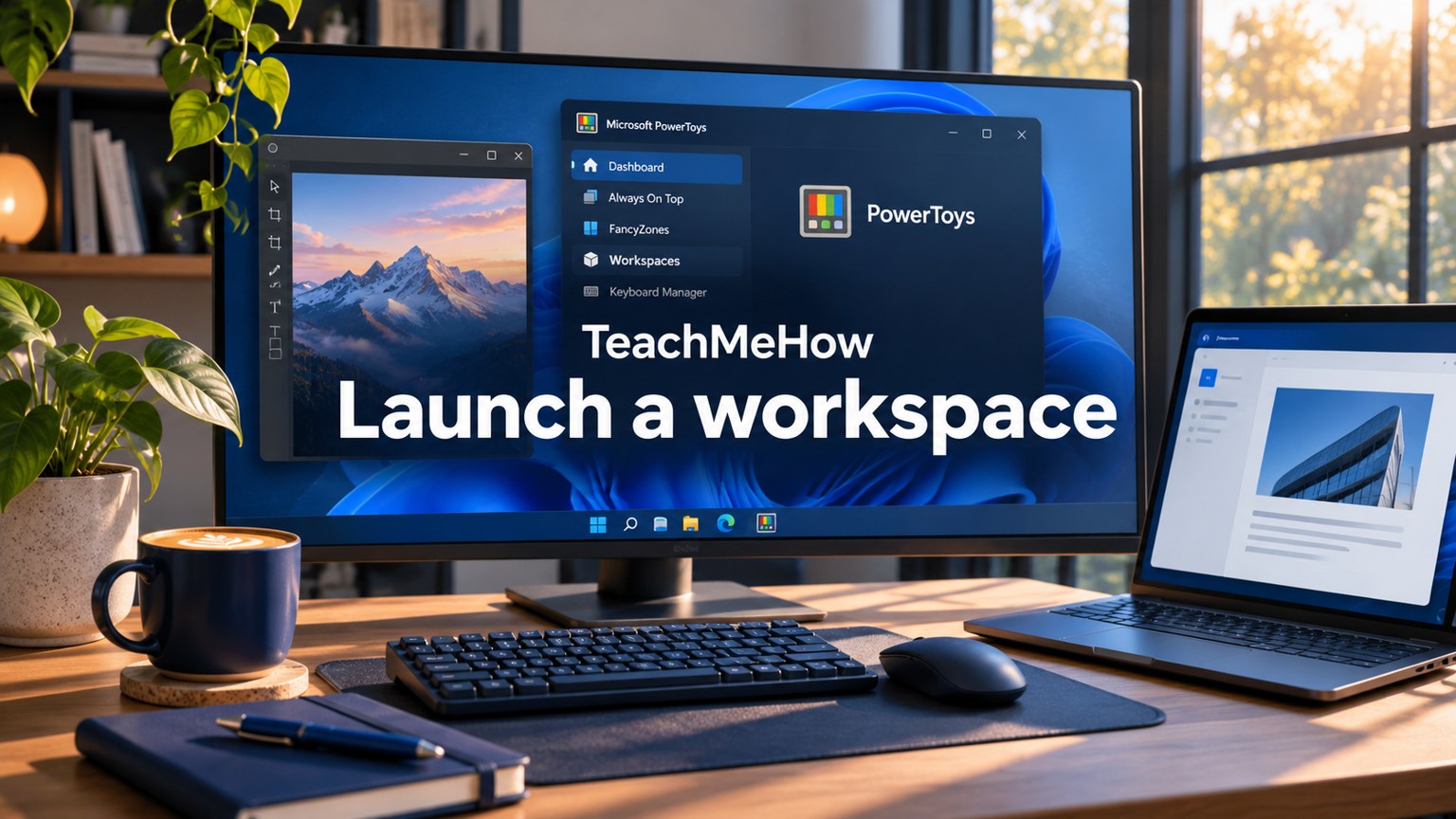
Capture a group of apps and their window positions, create a desktop shortcut, and test what PowerToys restores when you launch the workspace again.
Follow these steps at your own pace. Check product terms and prices directly with providers before purchasing.
Quick answer
In PowerToys Settings → Workspaces, enable the utility and select Launch editor. Choose Create workspace, arrange your apps, and select Capture. Review the list, name it, enable the desktop shortcut if you want one, and save. Launch the workspace to open or arrange the apps together.
Decide what you expect to return
A useful workspace has a purpose, such as reviewing product photos with Explorer on the left, a browser in the center, and a notes app on the right. Workspaces records applications and window positions. A browser tab, a particular document, an unsaved note, and a signed-in session each depend on the application. Save your work normally before trying the launcher.
Install Microsoft PowerToys from the Microsoft Store if needed. Connect the monitors you normally use for this task. If you want precise proportions, lay out the desktop with FancyZones first. Workspaces can then capture windows where you put them, including ones you positioned by hand.
Create the first workspace
- Start the applications you expect to use together. Bring the windows you intend to capture into view. Save any open documents before closing an unrelated window, or leave it open and remove its entry during review.
- Open the Workspaces editor, select Create workspace, and continue arranging the desktop while the capture controls are visible. Use actual content to decide whether a reference pane needs more width. Select Capture once the desktop is ready.
- Inspect each captured application. Remove unrelated entries from the proposed workspace and check the display and size for the remaining windows. Give it a name that describes the task, such as “Photo review on external monitor.”
- Choose the desktop shortcut option if you want to launch it outside the editor, then save. Leave the editor and start the workspace using the shortcut or the Launch action beside its name.
Test both a fresh launch and an already-open app
First save and close one nonessential test app. Launch the workspace and watch whether it opens in its expected place. Next, leave the app open, move it to another position, and run the workspace again. The Move existing windows option and the application’s own handling of additional instances affect whether a window moves, a new one opens, or the existing app handles the request.
| Result | Next adjustment |
|---|---|
| Right app and position, wrong document | Check whether that app supports a file path or another startup argument. Capture alone does not identify every document. |
| The same browser opens with different tabs | Use the browser’s supported launch behavior or open the required tabs separately. Check the active profile. |
| A window lands on the wrong monitor | Test with the original connected displays and arrangement. Consider a separate workspace for laptop-only use. |
| A distraction launches every time | Edit the workspace and remove the extra application entry. That change affects the launcher. |
Make a specific document part of the routine
For a text editor that accepts a document path at launch, add the path to that app’s arguments in the workspace editor. Use a harmless test document first and follow the application’s quoting rules for spaces. Move the document temporarily only if you have a copy, or simply test a second document by changing the saved argument. Verify the filename inside the app, not just the window title or its position.
Name laptop and docked arrangements separately
If you start work at a desk and finish on a laptop, save two clearly named arrangements. A two-monitor browser and document layout may feel cramped when reproduced on one screen. For the laptop version, remove an optional reference app or reduce the number of simultaneous windows. Launch each while its intended screen setup is connected. The shortcut name then tells you which arrangement you are about to open.
Edit the layout without losing a useful setup
The editor lets you adjust an individual window entry or launch and recapture the arrangement. Microsoft notes that a clean recapture can remove previous arguments and settings. Record any special arguments before recapturing and verify them afterward. If the issue is a small reference slipping behind other apps, pin that window for the current session rather than rebuilding the workspace.
A final check is to start from an ordinary desktop, launch once, and complete the first two actions of your real task. A neatly arranged empty editor is only half a result if you still have to hunt for the right working file. Microsoft documents capture, startup arguments, and reuse of existing windows in its PowerToys Workspaces guide.
Comments
Comments are reviewed before they become public.
Sign in with Google to leave a comment.
Sign in with GoogleNo approved comments yet. Be the first to start the discussion.