How to Choose the Right Ergonomic Mouse
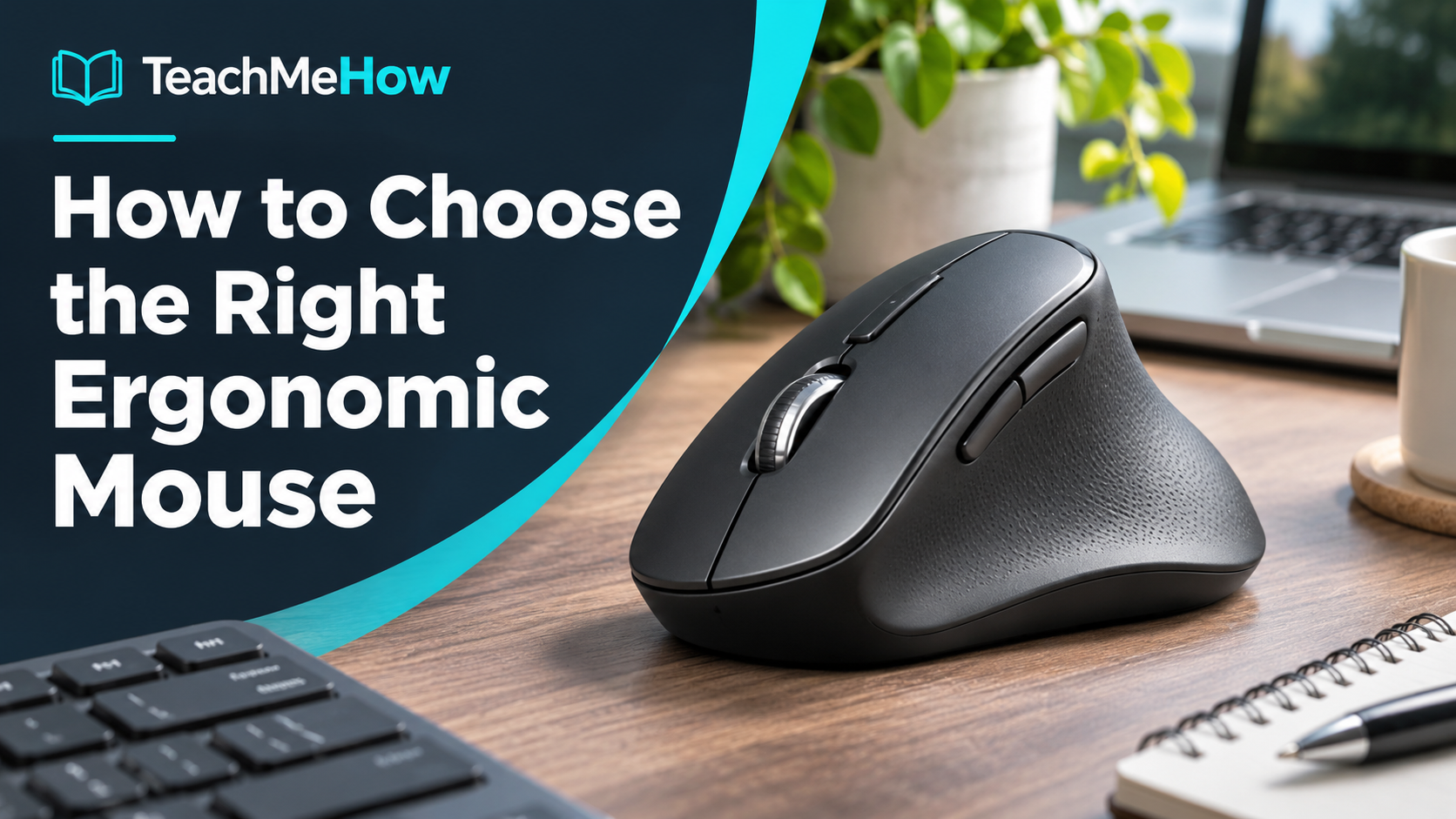
Learn how to choose the right ergonomic mouse based on hand size, grip style, shape, button layout, wireless connectivity, battery life, comfort, and daily computer use.
Follow these steps at your own pace. Check product terms and prices directly with providers before purchasing.
How to Choose the Right Ergonomic Mouse
A computer mouse is something many people use for hours every day, yet its shape is often treated as an afterthought. A mouse that is too small, too large, or poorly shaped for your hand can become uncomfortable during long work sessions and may make repetitive computer tasks more tiring than they need to be.
An ergonomic mouse is designed to improve comfort by supporting a more natural hand position or reducing unnecessary wrist and arm movement. But there is no single ergonomic design that is best for everyone. Hand size, grip style, desk setup, work habits, and personal preference all matter.
Start With Your Hand Size
One of the most important factors is whether the mouse actually fits your hand. A mouse that is too small can force your fingers into a cramped position, while a very large mouse may feel difficult to control.
If possible, compare the mouse dimensions with one you already use comfortably. Some manufacturers also provide hand-size recommendations.
People with larger hands often prefer a fuller mouse that supports more of the palm, while smaller hands may feel more comfortable with a compact design.
Understand Your Grip Style
Most people naturally use one of three general grip styles: palm, claw, or fingertip.
With a palm grip, much of the hand rests on the mouse. A larger, more supportive shape often works well for this style.
A claw grip keeps the palm partially raised while the fingers curve downward onto the buttons. Medium-size mice with a pronounced rear section can work well.
Fingertip users control the mouse mainly with their fingers and may prefer a smaller, lighter design.
You do not need to fit perfectly into one category, but understanding how you naturally hold a mouse can help you avoid buying a shape that fights against your normal movement.
Traditional Ergonomic Mouse
Some ergonomic mice look similar to a normal mouse but use more sculpted curves, thumb rests, and better support for the palm.
These models require almost no adjustment period and can be a good choice for people who want more comfort without dramatically changing how they use a computer.
If you have never used an ergonomic mouse before, this type is often the easiest place to start.
Vertical Mouse
A vertical mouse rotates the hand into a more upright, handshake-like position. Instead of keeping the palm flat against the desk, the hand rests on its side.
Some users find this position more comfortable during long work sessions because it changes how the forearm and wrist are positioned.
The tradeoff is an adjustment period. A vertical mouse can initially feel slower or less precise because the movement is different from a traditional design.
If you do detailed graphic work or gaming, you may want to test the design before committing to it for all of your computer use.
Trackball Mouse
A trackball mouse remains stationary on the desk. Instead of moving the entire device, you rotate a ball with your thumb or fingers to control the pointer.
This can significantly reduce arm and shoulder movement and can also be useful when desk space is limited.
Trackballs require a different type of coordination, so most users need time to become comfortable with them.
Comfort Matters More Than Appearance
An unusual-looking mouse is not automatically more ergonomic. The most important question is whether the device feels natural in your own hand.
Pay attention to where your fingers rest, whether the thumb is supported, and whether you have to stretch to reach buttons.
If you frequently lift and reposition the mouse, weight can also affect comfort.
Button Placement
Extra buttons can improve productivity when they are positioned well. Common examples include browser forward and back buttons, application shortcuts, copy and paste commands, or controls for switching between computers.
However, more buttons are not always better. A poorly positioned button that you accidentally press can become annoying.
Think about which shortcuts you actually use during the day.
Programmable Controls
Many ergonomic mice include companion software that allows you to change button functions, pointer sensitivity, scrolling behavior, and application-specific shortcuts.
This can be especially useful for editing, spreadsheets, design software, and other repetitive tasks.
Before buying, check whether the software supports your operating system and whether configuration settings are stored on the mouse or require the software to remain installed.
Wireless, Bluetooth, or Wired?
Wireless mice reduce desk clutter and are convenient for laptops. Many models connect through Bluetooth, a small USB receiver, or both.
Bluetooth is useful because it does not occupy a USB port. A dedicated receiver may provide a very stable connection and can sometimes offer lower latency.
Wired mice eliminate battery concerns completely, but the cable may be less convenient in a clean desk setup.
Switching Between Multiple Computers
If you regularly use a desktop, laptop, and tablet, look for a mouse that can pair with several devices and switch between them with a button.
This can be one of the most useful productivity features for people who work across multiple computers.
Battery Life
Wireless mice may use replaceable batteries or an internal rechargeable battery.
Some models can operate for months on one battery, while rechargeable designs can be topped up through USB.
Check whether the mouse can still be used while charging if you do not want interruptions during the workday.
Pointer Sensitivity and DPI
DPI is commonly used to describe pointer sensitivity. A higher setting makes the cursor move farther with a smaller physical mouse movement.
Very high DPI numbers are not necessary for typical office work. What matters more is whether the sensitivity can be adjusted to a comfortable level.
People using large or high-resolution monitors may appreciate quick access to multiple sensitivity settings.
Scrolling
The scroll wheel is used constantly in web browsing, spreadsheets, and long documents, so it deserves attention.
Some mice offer smooth or free-spinning scrolling for moving quickly through long pages. Others provide a more traditional click-by-click feel.
Horizontal scrolling can also be useful for large spreadsheets, timelines, and creative applications.
Consider Your Desk Surface
Most modern optical sensors work well on standard mouse pads and desks, but performance can vary on glass or highly reflective surfaces.
If you regularly use the mouse on unusual surfaces or travel frequently, check the manufacturer's sensor compatibility.
Operating-System Compatibility
Basic mouse functions usually work across major operating systems, but advanced buttons and customization software may not.
If you use macOS, Windows, ChromeOS, or multiple systems, check software support before buying.
Common Ergonomic Mouse Buying Mistakes
One common mistake is assuming that the most dramatic-looking ergonomic design must be the healthiest or most comfortable. A mouse still needs to fit your specific hand and working style.
Another mistake is buying a vertical mouse without expecting an adjustment period. It can take several days or longer before the new movement feels natural.
People also sometimes focus on features while overlooking basic size and weight. A simpler mouse that fits your hand well may be more comfortable than a feature-packed model that does not.
Which Ergonomic Mouse Is Right for You?
If you want an easy transition from a normal mouse, start with a sculpted traditional design with good palm and thumb support.
If you want a more upright hand position, consider a vertical mouse. If you have very limited desk space or want to reduce arm movement, a trackball may be worth trying.
People who work across multiple computers should look for multi-device connectivity, while heavy productivity users may benefit from programmable buttons and advanced scrolling.
What to Compare Before Buying
- Hand size
- Palm, claw, or fingertip grip
- Traditional, vertical, or trackball design
- Overall shape and thumb support
- Weight
- Button placement
- Programmable controls
- Bluetooth and USB receiver support
- Multi-device switching
- Battery life
- Rechargeable versus replaceable battery
- DPI and sensitivity adjustment
- Scroll-wheel features
- Operating-system compatibility
- Software support
- Warranty and price
The right ergonomic mouse should disappear into your workflow rather than constantly reminding you that you are using it. Comfort, fit, and natural movement are more important than unusual design or a long feature list. Choosing based on your own hand and work habits is the best way to find a mouse you will be comfortable using every day.
Comments
Comments are reviewed before they become public.
Sign in with Google to leave a comment.
Sign in with GoogleNo approved comments yet. Be the first to start the discussion.