How to Block a Recurring Lunch Break in Square Appointments
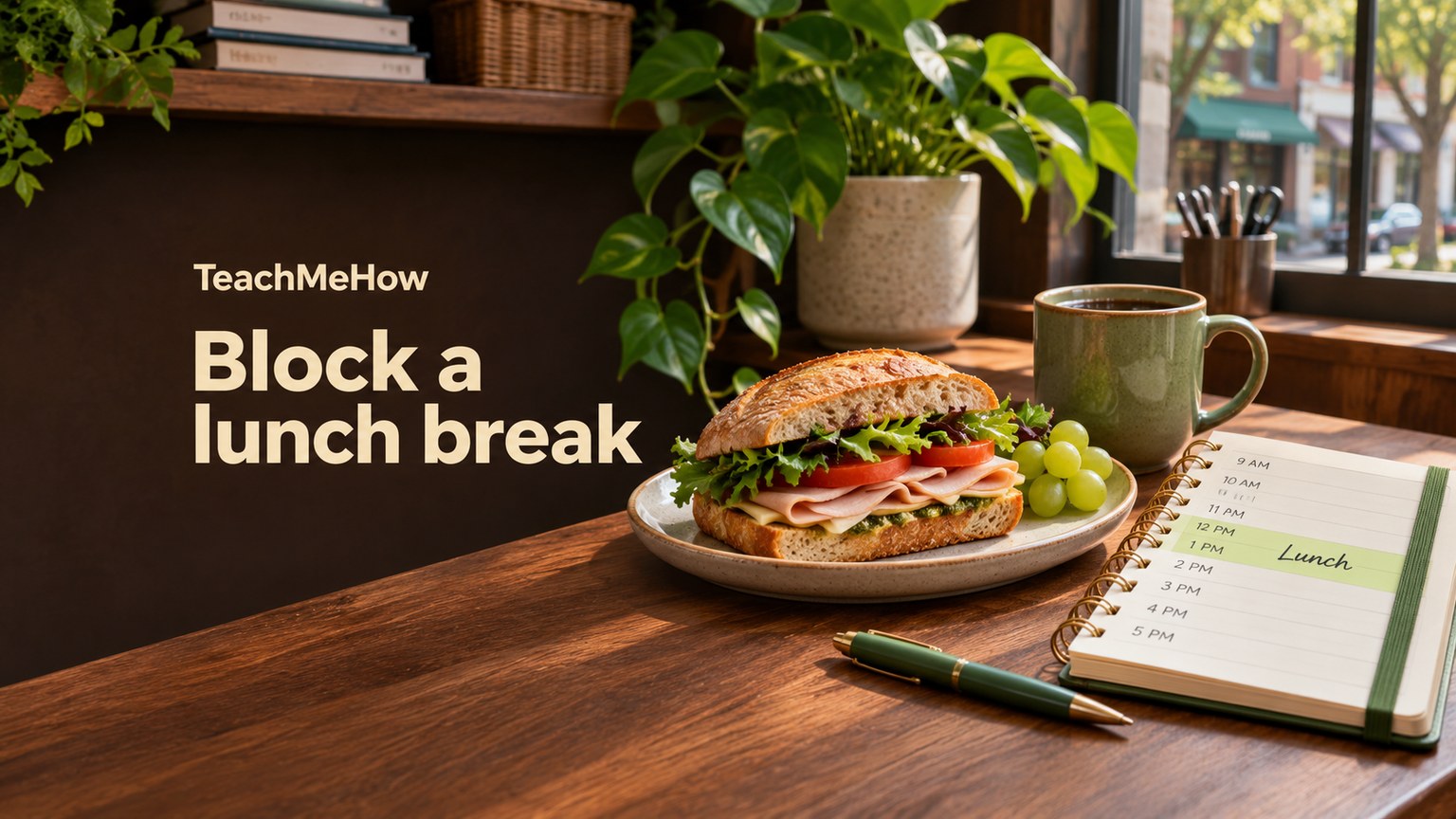
Block lunch on the right staff calendar, repeat it on working days, and test that customers cannot book a service across the break.
Follow these steps at your own pace. Check product terms and prices directly with providers before purchasing.
Quick answer
Create a personal event in the Square Appointments calendar, select Block time, and set it to repeat on the staff member’s working days. A calendar entry with Block time turned off can leave lunch open for online booking.
Set a recurring break in Square Dashboard
- Open Appointments → Calendar. Find the first day the break should apply. Look for appointments already on the calendar that overlap the proposed lunch before adding a recurring event.
- Click or drag across the intended time. Choose Create and change the event type to Personal event. Give it a clear internal title, such as “Lunch – front desk.”
- Check Block time. Set the start and end, for example 12:30–1:00 p.m. Open Set repetition, choose the days or recurrence offered that match the staff schedule, and save the repetition settings.
- Select the staff member, save the event, and check at least one later occurrence. A rotating lunch schedule may need separate recurring events for different staff members or days.
Check the break as a customer
Open the location’s customer booking link and select the affected staff member. If their lunch starts at 12:30, a one-hour service should not be available with that person at noon. Check a date far enough ahead that your minimum advance notice cannot explain the missing slot. Customers see available times; the personal event title is private to the calendar.
| What you see | What to check |
|---|---|
| The block is visible to staff, but clients can still book that person | Open the personal event and verify Block time and the assigned staff member. |
| A noon slot remains under Any Available | Select the individual staff member. Another eligible provider may be working through that interval. |
| Only the first lunch appears | Reopen the event, inspect the repetition settings, and check the next scheduled working day. |
On the Square Appointments app
Open Calendar → + → Create Personal Event. Set the time and staff member, use Repeats for the pattern, and turn on Block Off Time as Busy. If the event came from a synced personal calendar, make changes in the calendar where it originated.
Comments
Comments are reviewed before they become public.
Sign in with Google to leave a comment.
Sign in with GoogleNo approved comments yet. Be the first to start the discussion.