How to Rotate One Monitor to Portrait in Windows 11
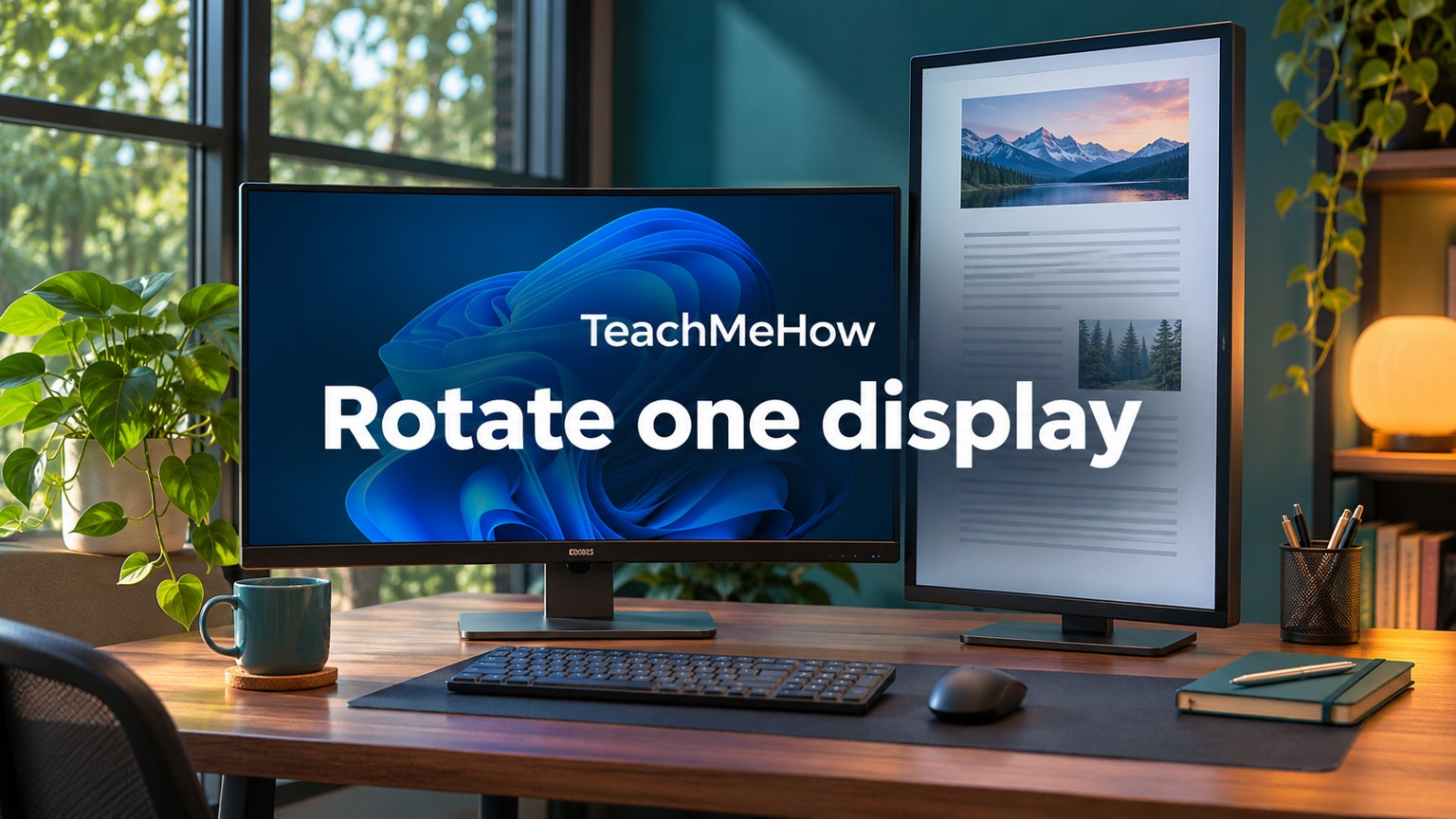
Rotate the intended external display, choose the correct portrait direction, and realign the pointer boundary beside a landscape monitor.
Follow these steps at your own pace. Check product terms and prices directly with providers before purchasing.
Quick answerSelect your pivoting monitor in Settings → System → Display, choose Display orientation → Portrait, and physically turn the panel in its supported direction. If the image is upside down, try Portrait (flipped). Keep the change once text reads upright.
Check the physical setup before you pivot
Look at the monitor or stand manual for pivot support, the permitted direction and any required height or tilt adjustment. A panel mounted on a fixed stand may have a Windows orientation menu even when the stand cannot rotate. If the stand does not offer a pivot movement, leave the monitor in its supported position.
Make room for both lower corners to clear the desk and any speakers. Make sure the power and video leads can follow the movement without pressing sharply against their plugs. If they are taut, power the monitor off and reposition the leads before proceeding. Keep the other display in landscape so you have a readable place to work during setup.
Select the screen that will turn
Open Display settings from the desktop context menu. Select Identify, note the number on the pivoting monitor, then click its matching rectangle. If the two displays show the same desktop, first set up the monitors as an extended desktop. Check that each appears as an individually selectable tile.
Find Scale & layout → Display orientation for the selected monitor. Turn the panel according to its manual. Choose Portrait, read the confirmation prompt, and keep the change only if the whole image now reads normally. If the result is unusable, allow the confirmation timer to expire when offered, or choose Revert from the readable display.
Choose between the two portrait options
| What the physical screen shows | Next move |
|---|---|
| Letters read upright and the taskbar is along the bottom | Keep the setting. |
| Letters are upside down on the vertical panel | Try the other portrait option and read a line of text before confirming. |
| The laptop image turned sideways instead | Revert, run Identify and select the external monitor’s number. |
| An upright photo still looks sideways in one app | Check that file’s rotation. Confirm the Windows desktop itself is upright. |
For a quick check, open an ordinary upright document with a heading and a page number. The heading should sit across the short edge at the top. Scroll down one page and watch the document move along the long dimension of the panel.
Make the narrow screen useful for reading
Drag a PDF or a long spreadsheet onto the upright display, then maximize its window. In a PDF viewer, compare Fit page and Fit width. Fit page is useful for reading the whole layout at once, while Fit width can give you larger text and more scrolling. If menus as well as the document appear too small, change scaling on just the portrait monitor.
Back in Display settings, reposition the tall rectangle beside the landscape monitor. Align the portion of the shared edge where your hand naturally moves the pointer. For two panels whose top edges line up on the desk, start by aligning their tops in Windows. If the pointer hits a corner, adjust the cursor crossing point.
Use a short work sample before moving the stand again
Put a document on the portrait display and a second document on the landscape display. Move a window from one to the other, maximize it, then scroll several lines. This tests three separate choices at once: whether the image reads upright, whether the pointer crosses where expected and whether you can read the text at your seat. Fix the specific setting behind any failed test.
Return to landscape later
Select the same numbered tile and choose Landscape, then rotate the panel back through the stand’s permitted range. Confirm only after text is upright and the cable is clear. Check the display map again because the tile is wider after the change. Microsoft describes where to find orientation in its guide to arranging and orienting displays.
Comments
Comments are reviewed before they become public.
Sign in with Google to leave a comment.
Sign in with GoogleNo approved comments yet. Be the first to start the discussion.