How to Record the Last 30 Seconds of Gameplay in Windows 11
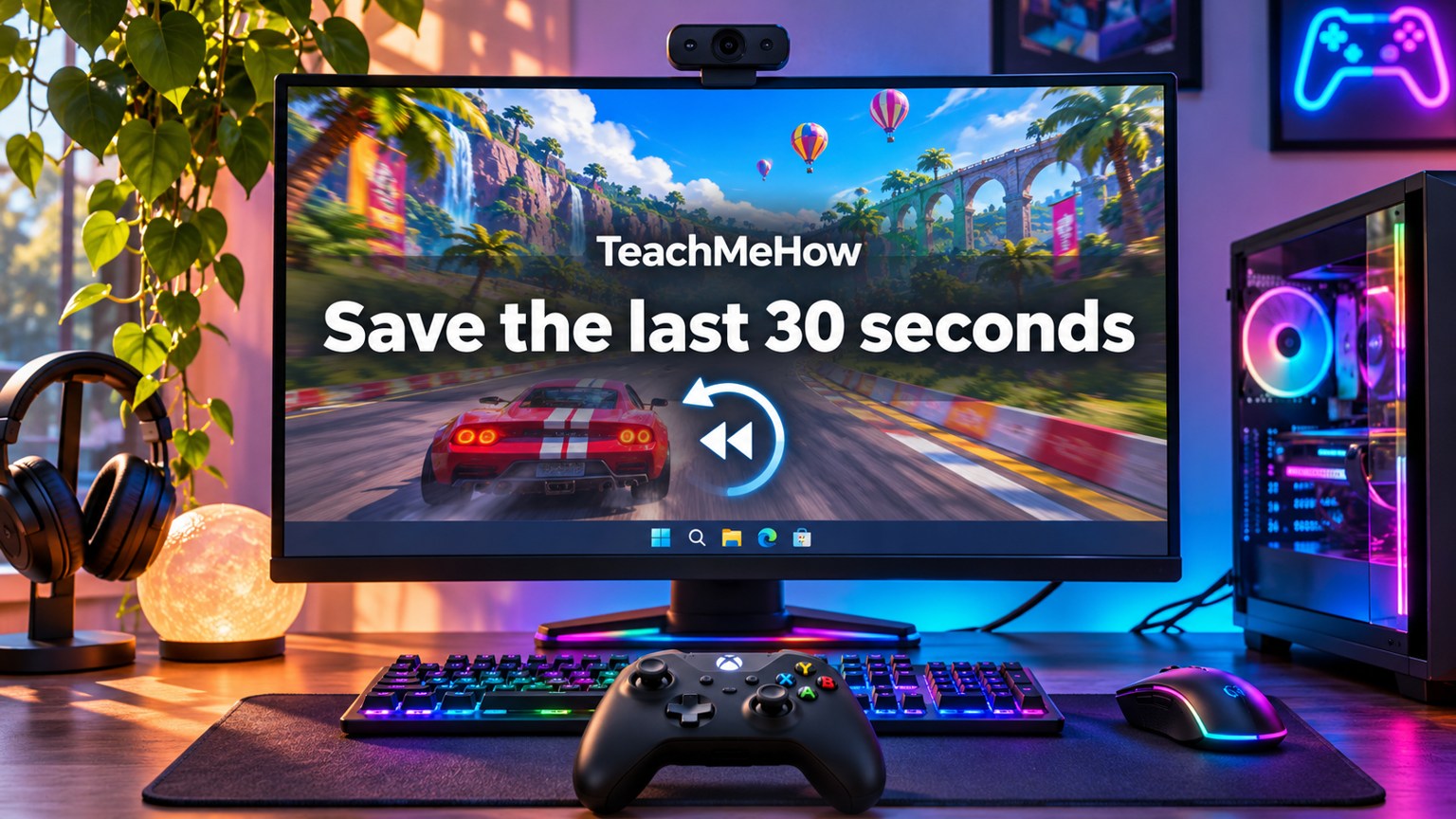
Enable recent gameplay capture before you play, save a 30-second replay with a shortcut, and find the clip in Windows.
Follow these steps at your own pace. Check product terms and prices directly with providers before purchasing.
Quick answerBefore you play, open Settings → Gaming → Captures, turn on Record what happened, and choose a 30-second history where offered. After a highlight in a supported game, press Windows key + Alt + G. Open the resulting clip and check that the action is in it.
Set up a replay before the interesting part
Recent gameplay capture keeps a rolling history while a supported game runs. When you ask it to save a highlight, it writes the recent interval to a clip. Turning on the feature after a goal, finish or rare event cannot recover play that the computer never buffered. Set it up in a practice round first.
Open Windows Settings, choose Gaming and open Captures. Turn on Record what happened. Expand its options if necessary and choose 30 seconds for the amount of recent gameplay to record. Review any options shown for battery use. A laptop that records while plugged in may behave differently on battery depending on these settings.
Save an event without stopping your game
Launch a supported game, keep its window focused and play for longer than the selected duration. Use a visible landmark as a test, such as passing the starting gate in a time trial. A few seconds later press Windows key + Alt + G. Look for a capture notification or open Game Bar with Windows key + G and inspect the Gallery.
Make the timing concrete. If the finish line appears five seconds before you press the shortcut, a 30-second clip can include the lead-up and the finish. If you spend another minute looking at the scoreboard before pressing it, the earlier finish can fall outside the rolling interval. Save promptly, then decide whether to keep the clip after the round.
Choose a replay or a new recording
| What you want | Control or approach |
|---|---|
| Keep the play that just ended | Windows key + Alt + G with recent capture already enabled. |
| Record a match starting now | Windows key + Alt + R starts a manual Game Bar recording. Use the same shortcut to stop it. |
| Record a selected part of the desktop for a tutorial | Use a region recording in Snipping Tool and start before the demonstration. |
Manual recording and a recent replay can both produce MP4 files, but they answer different questions. For a move you can repeat deliberately in a desktop app, record the selected screen region and keep the action inside that frame.
Locate and check the actual video
Look in File Explorer under Videos → Captures by default, or use the location shown in Settings → Gaming → Captures if yours has changed. Game Bar’s Gallery can help identify the correct game and time. Play the beginning, the highlight and the end. Check the speaker volume during playback before concluding the recording has no audio.
If voice chat or a microphone should be absent from what you share, listen to the finished clip with headphones. Review the capture audio options and the game’s own voice settings before the next test. Give a keeper a distinctive filename after confirming its contents so it is easy to tell apart from practice attempts.
Check that replay length suits the action
For a quick finish, a thirty-second window may be enough. For a longer sequence, test an available longer history before the match or start a manual recording at the beginning. In the sample clip, time the interval from the first decision a viewer needs to understand to the final result. Use that actual interval to choose your next capture setting.
If the replay is empty, too short, or unavailable
Return to Captures and check that recent recording was enabled before gameplay. Test again in the game itself after a full 30 seconds of active play. Try the Capture widget in Game Bar if a keyboard utility intercepts the shortcut. Available capture features depend on the game, system and applicable device settings.
If recording affects game smoothness, compare a practice run with background recording on and off. Use the shortest history that meets the purpose, and turn it off when you finish if you only need it for one session. See the illustrated recent-capture settings and Microsoft’s Game Bar recording instructions for the two workflows.
Comments
Comments are reviewed before they become public.
Sign in with Google to leave a comment.
Sign in with GoogleNo approved comments yet. Be the first to start the discussion.