How to Print a Color PDF in Black and White in Windows 11
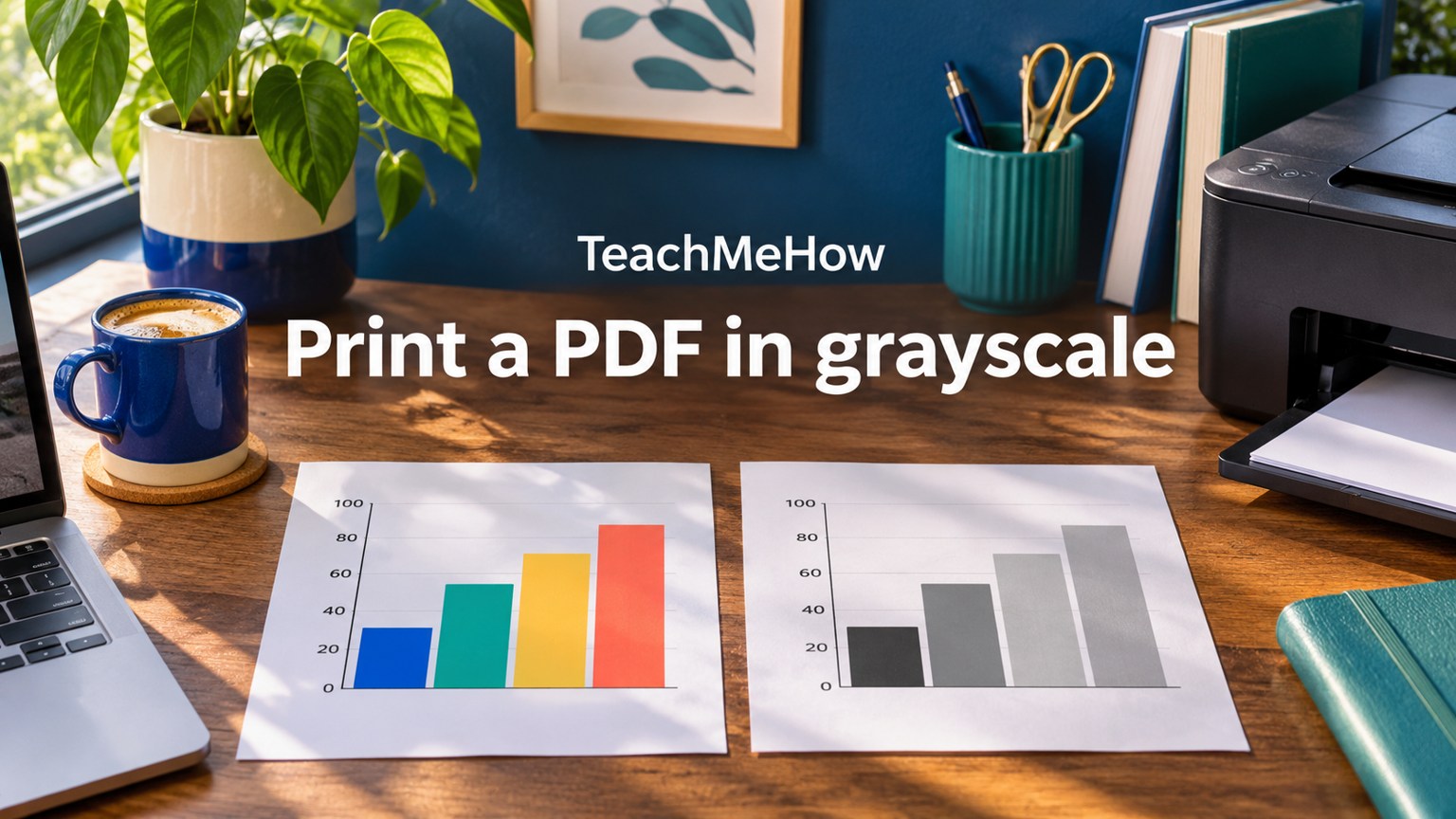
Make a grayscale copy of a color PDF, check charts for lost contrast, and distinguish grayscale output from a black-ink-only printer setting.
Follow these steps at your own pace. Check product terms and prices directly with providers before purchasing.
Quick answerOpen the PDF in desktop Adobe Acrobat Reader, press Ctrl + P, select your physical printer, and enable Print in grayscale (black and white). Print one representative page. If you specifically need to use only the black cartridge, also check your printer’s driver and manual for a supported black-ink-only mode.
Decide which result you need
A grayscale handout reproduces the page with shades from white through gray to black. A strict black-and-white or monochrome setting can have a different meaning depending on the printer, especially for photographs. A black-ink-only mode concerns which ink the device uses. Two prints that look gray to the eye can be produced using different ink combinations.
For a class handout, readability may be your only concern. For an inkjet running low on color, the cartridge question matters. Some models require usable color cartridges even for monochrome output, or use color inks in some gray modes. Check the instructions for your exact printer before relying on a particular setting to save a specific cartridge.
Set grayscale for this document
Open the file in Reader. Press Ctrl + P and choose the intended physical printer. In the Print dialog, check Print in grayscale (black and white) if it is available. For a different PDF app, look for Color or Color mode in its print dialog, or open the PDF once in Reader to follow these steps.
Open Printer properties or Preferences for the chosen queue and inspect the device’s color options. Depending on the model, you may see Color, Grayscale, Black & White or Black Ink Only. Choose the mode that matches your purpose and the loaded media. If a choice is missing, inspect the manufacturer’s supported settings for the model and driver. Do not assume a PDF destination exposes the same controls as a physical inkjet.
Use a page that can actually reveal problems
| PDF element | What to check on paper |
|---|---|
| A chart with red and green series | Can a reader identify each series from its label, pattern or line style? |
| Pale gray field labels | Are labels and box borders still visible at normal reading distance? |
| Photographs and gradients | Do adjacent dark areas retain enough detail? |
| Hyperlinks identified only by color | Can the reader still tell the link text apart in the printed instructions? |
Choose a page containing the hardest example and set the print range to that page only. A cover with a black title on white paper tells you almost nothing about a chart buried on page six. Write the chosen color setting on the back of the proof if you need to compare two modes.
Fix low contrast without making five full copies
If two color series become the same gray, a darker print setting alone may leave them equally hard to distinguish. With access to the source, add direct labels, different line styles or hatch patterns. If you received the PDF, keep the original and include a short legend or a color version when the distinction is essential.
If the entire proof looks unexpectedly pale, compare one page with any draft or ink-saving option turned off. Change one setting per sample and use the same sheet type. If size or cropping has also changed, check PDF print scaling separately before blaming grayscale conversion.
Use text labels in a printed status report
A green cell for complete and a red cell for overdue can turn into two similar gray fills. Put a short status word or a symbol with a printed legend in each row of the source report. Then proof the page with the faintest fill. If the report comes from Excel, fit the worksheet columns on one page wide so the status label stays beside the item it describes.
Confirm the next job’s settings
A choice made in one print dialog may be remembered by that app. When the next document requires color, check both the application and the printer properties before clicking Print. For a large color project, such as a PDF poster tiled across ordinary sheets, a grayscale layout proof can help catch a clipped edge before the final run. Adobe shows the monochrome control in its PDF printing guide.
Comments
Comments are reviewed before they become public.
Sign in with Google to leave a comment.
Sign in with GoogleNo approved comments yet. Be the first to start the discussion.