How to Merge Duplicate iPhone Photos and Find a Missing Duplicates Album
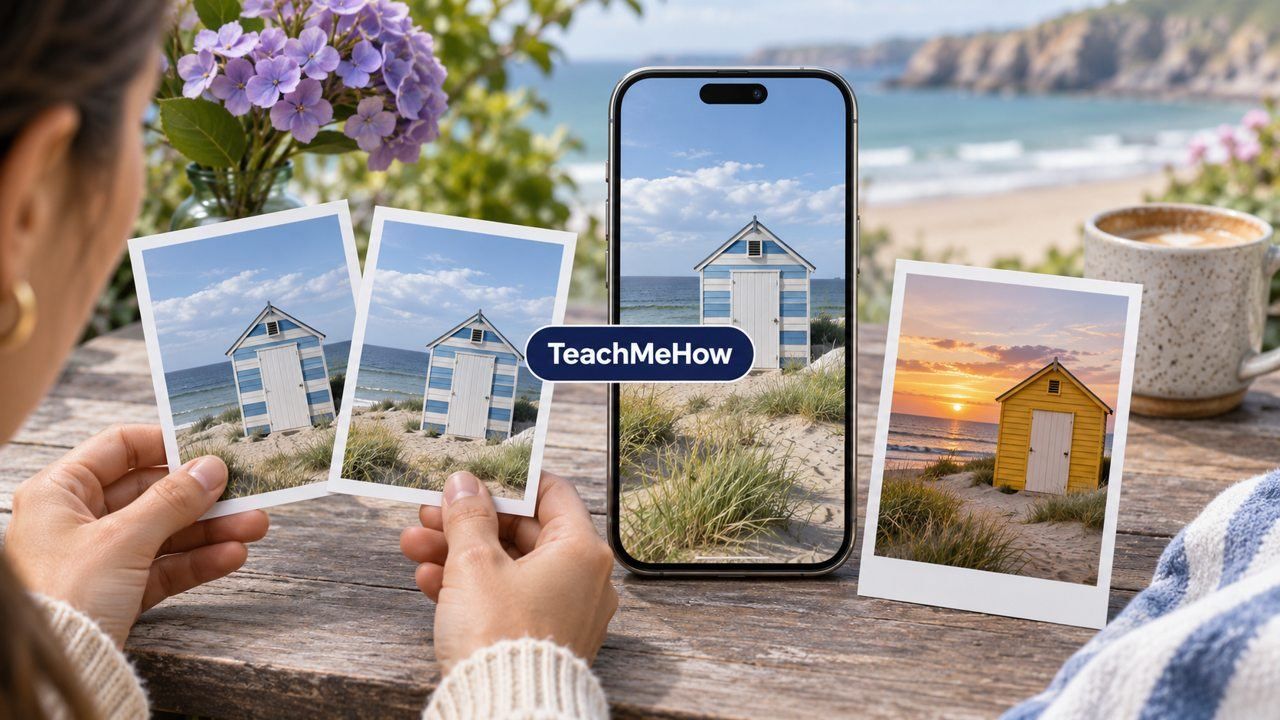
Review duplicate groups, understand what Merge keeps, and check why Duplicates may be missing after importing a photo library.
Follow these steps at your own pace. Check product terms and prices directly with providers before purchasing.
In Photos, open Collections, find Utilities, and tap Duplicates. Compare one group, tap Merge beside it, and confirm. Photos keeps one item using the highest available quality and relevant information. The other copies move to Recently Deleted. If Duplicates is missing, allow time for Photos to scan the library while the iPhone is locked and charging.
Understand what counts as a duplicate
Importing the same beach picture twice can produce an obvious pair. A full-size image and a smaller copy received in a message may look identical at thumbnail size. Two pictures of the same beach hut taken a second apart can show a different expression or wave. Decide whether you would miss either version before approving a merge. Leave uncertain groups alone.
1. Open the right collection
Use Apple Photos on the iPhone. On versions with a Collections tab, open Collections, then Utilities and Duplicates. On an older scrolling layout, look for Utilities within Photos. The built-in detection feature is available starting with iOS 16. Its results concern the Apple Photos library, which can differ from the items visible in another photo app.
2. Inspect a single group
Open both thumbnails, compare the subject, crop, markings, and any visible size information. If one copy has a handwritten annotation or represents an intentional export for a client, consider keeping it separately. The fact that two images look alike is only one part of your decision.
3. Merge a low-risk pair first
Choose a pair you confidently recognize, tap its Merge control, and review the confirmation. Return to the library and open the surviving picture. Compare it with what you intended to keep, including useful details in Info. Once you understand the result, continue group by group or select a modest number of reviewed groups.
4. Know the recovery path
In Photos, open Utilities and Recently Deleted, authenticate if prompted, and find the removed item. Use Recover if you need that version back. Items normally remain there for 30 days unless permanently removed sooner. Leave that recovery window available while you evaluate your results, particularly after a large import.
Why Duplicates may be missing
| Situation | Next step |
|---|---|
| You just restored or imported thousands of images | Give the library time to finish processing. Apple says this can take several days. |
| The phone is mostly in use or unplugged | Leave it locked and connected to power during an idle period. |
| No duplicate groups have been found | Photos may have no Duplicates collection to display. |
| Two photos seem similar but have different moments | Compare them yourself. Similarity alone does not guarantee Photos will group them. |
For example, one beach-hut photo may show the door closed while the next shows someone stepping outside. Zoom in on those details and decide whether the second frame documents something new. If the two images are useful as a sequence, put them in the desired order in an album instead of merging them.
If your actual goal is freeing space
A library count dropping by one and the phone gaining a particular number of megabytes are different outcomes. Recently Deleted, iCloud Photos, and local storage optimization affect what you observe. Avoid promising yourself a certain amount of space based on the number of detected groups. With iCloud Photos enabled, library changes can also sync to other devices on the same account.
If you use Google Photos as a separate backup, check the backup workflow independently before removing library items. TeachMeHow’s guide to freeing iPhone storage after verifying a Google Photos backup covers that specific job. For Apple’s own troubleshooting checklist, see the support link below. A missing Duplicates collection alone is never a reason to erase and rebuild a library.
Make a decision when the two copies serve different jobs
Consider a full-resolution original of a bedroom and a smaller version prepared for a rental listing. The listing version may have a different crop chosen to meet the website’s requirements. Before combining anything, check whether you still need to reproduce exactly what was posted. Keeping a named export with the listing records may make sense even when the pictures look interchangeable in the library.
For ordinary double imports, review one pair from the earliest import and another from the newest. Look at text on signs or fine edges to compare quality and check any important identifying detail. If the surviving pictures meet your needs, continue through the reviewed groups. If a pair contains an edited and an unedited deliverable, leave it until you know which version, if either, can go.
Comments
Comments are reviewed before they become public.
Sign in with Google to leave a comment.
Sign in with GoogleNo approved comments yet. Be the first to start the discussion.