Compare laptop cooling pads by vent layout, platform size, fan noise, USB power, and typing angle.
Quick AnswerCheck where your laptop draws in air and measure the width and depth of its base. If it has bottom intake vents and you use it for long gaming or editing sessions, choose a powered pad that directs air toward those vents. If you mainly want more space beneath a laptop on a desk, a ventilated stand may be enough.
Compare Laptop Cooling Pad Types
| Type | Best for | What to check |
|---|
| Passive ventilated stand | Desk work where you want more clearance and quiet | Vent openings, grip, and typing angle |
| USB-powered mesh pad | Laptops with bottom intakes and sustained workloads | Fan placement, speed control, and USB power |
| Sealed blower pad | Compatible gaming laptops with a large bottom intake area | Gasket fit, noise at useful speeds, and power adapter needs |
1. Locate the Laptop’s Air Intakes
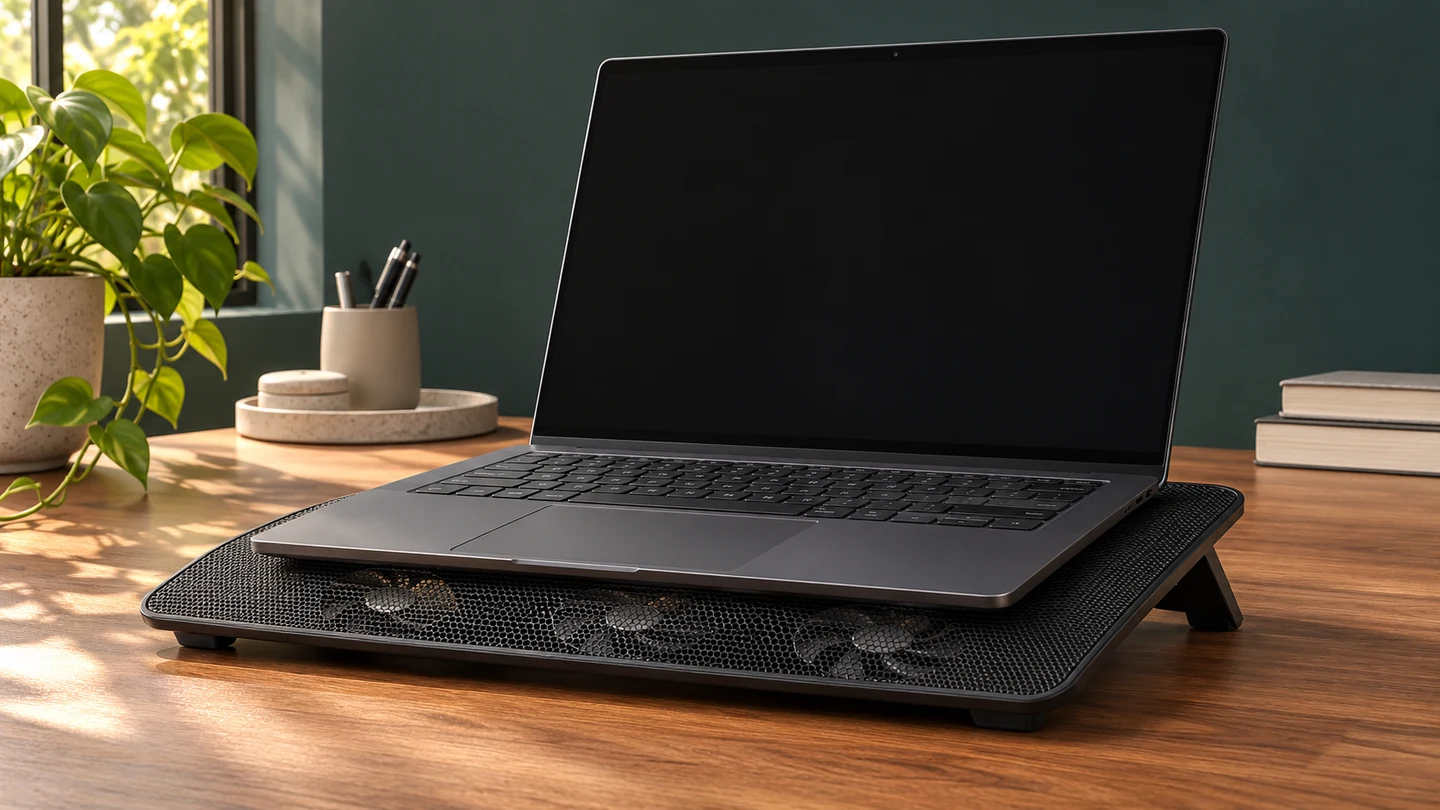
Check the manual or look at the underside for intake vents. Place a mesh pad so its fan area lines up with those vents and leave space around the laptop’s exhaust. Cooling gains vary with the laptop layout, the room temperature, and what the computer is doing.
2. Measure the Laptop Base
Use the chassis width and depth to check fit. The screen diagonal on the box gives only a rough size range. Check whether the laptop’s rubber feet contact the platform and whether the front stops hold it in place without digging into your wrists.
3. Check Noise and Power
A fan-speed control helps when you switch between quiet work and a demanding task. Check the cable length and plug type. If the pad uses one of your laptop’s few USB ports, look for a model with a pass-through port or use a compatible power source.
4. Pick a Surface and Angle You Can Work With
A mesh top is useful on a hard desk, where air can reach the underside of the pad. If you use the laptop on your lap, look for a model with a stable base and an intake path that won’t be covered by clothing. For long typing sessions, start on a low setting or use a separate keyboard if you raise the laptop.
Buying tipBefore ordering, try the same workload on a hard surface with the rear of the laptop slightly raised on a stable support that leaves its vents clear. That gives you a baseline for judging whether a powered pad adds enough cooling to justify its noise and bulk.
What to Buy for Your Setup
| Setup | Look for |
|---|
| Quiet shared desk | A passive stand or a pad with low-speed control |
| Gaming or editing on a desk | A powered mesh pad with fans aligned to the bottom vents |
| Large laptop | A platform that supports all four feet and has a secure front stop |
| Limited USB ports | A compatible pass-through port or separately powered pad |
Common Mistakes
- Buying by screen size and overlooking the laptop’s footprint.
- Assuming more fans automatically produce better cooling.
- Setting a bottom-intake pad on a blanket.
- Expecting a cooling pad to fix blocked laptop vents or a failing internal fan.
Before You Buy
- Locate the intake and exhaust vents.
- Measure the laptop base and check the platform size.
- Check fan controls, power, and cable reach.
- Confirm the tilt, front stop, and base grip.
- Decide how much noise you can tolerate.
Bottom Line
Fit and airflow matter more than fan count. Start with passive clearance for ordinary desk work. For a laptop with bottom intakes and a sustained workload, choose a powered pad that lines up with the vents and fits your tolerance for noise.


Comments
Comments are reviewed before they become public.
Sign in with Google to leave a comment.
Sign in with GoogleNo approved comments yet. Be the first to start the discussion.