How to Cut Out the Middle of a Video in iMovie on iPhone
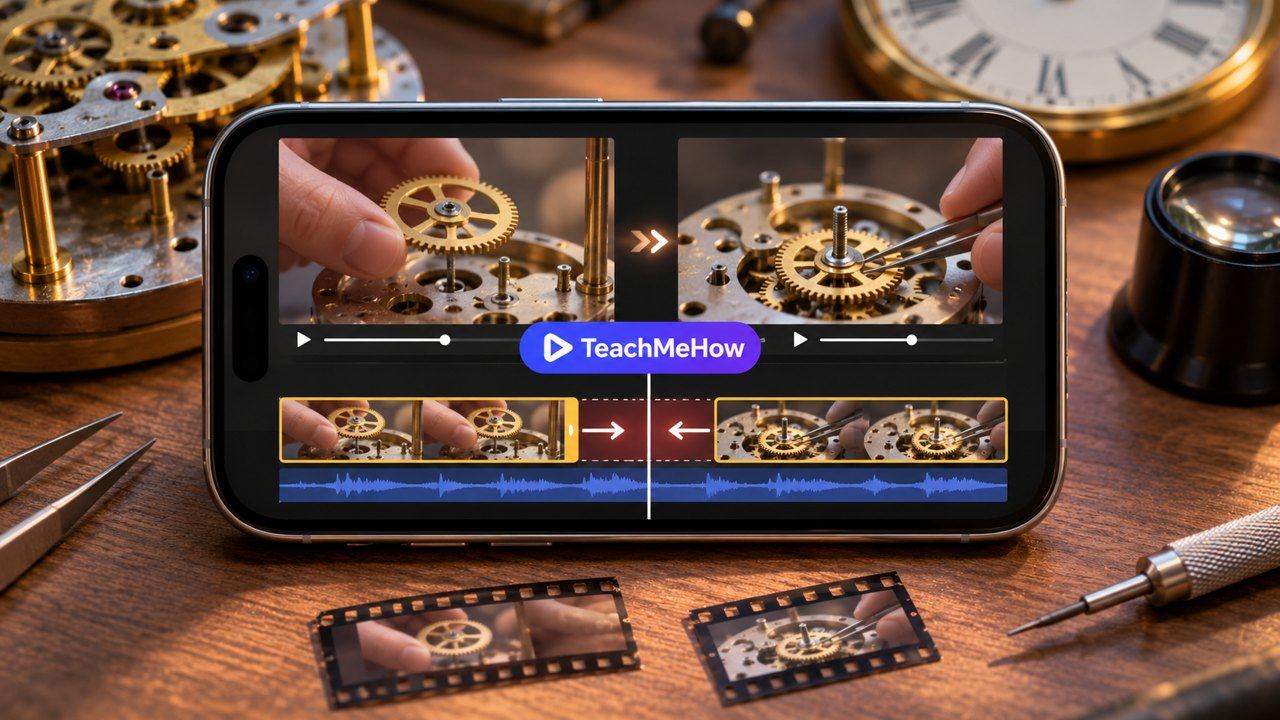
Keep the beginning and ending of a recording while removing a mistake, long pause, or unwanted scene between them.
Follow these steps at your own pace. Check product terms and prices directly with providers before purchasing.
To remove the middle of an iPhone video, open it in an iMovie Movie project and split the clip twice. Make the first cut where the unwanted section begins and the second where the footage you want resumes. Select the isolated middle piece, tap Delete, and play across the new join.
Mark what you want to keep
Suppose a 40-second recording shows you explaining a recipe. At about 12 seconds you stop to find the measuring cup. At about 23 seconds you begin again. The useful material is on both sides of the interruption. Trimming from an end would also remove the introduction or the demonstration. Two splits give the interruption its own selectable piece.
Watch once for the pictures, then listen for the first and last complete words. If the first sentence ends over the image of a hand reaching away, the end of that sentence is usually the better boundary. Note a visual cue at the restart, such as the cup touching the counter. The times are only landmarks. Use the viewer and your ears for the actual cut.
Isolate the interruption
1. Put the recording in a Movie project
In iMovie, choose Movie under Start New Project, select the recording, and tap Create Movie. If you already combined several videos into one project, open that movie and tap Edit. Confirm the strip you are about to change shows the recording with the mistake.
2. Split at the end of the material you want to keep
Move the strip beneath the fixed white playhead until the viewer shows the start of the interruption. Select the clip, tap Actions (the scissors), and tap Split. You should see two adjacent pieces. If the playhead sits exactly on the edge, move it inside the clip first.
3. Split again at the restart
Scroll until the viewer shows the first usable moment after the interruption. Tap the piece to the right of your first cut, open Actions, and tap Split. You should now have a short middle piece between two sections you intend to keep. Check the thumbnails on both sides before continuing.
4. Remove just the middle piece
Tap the isolated strip and check that its yellow outline stops at both cuts. Tap Delete. The remaining sections meet on the timeline, and the original recording remains in Photos. If the start or ending disappears, use Undo immediately and select the shorter piece again.
5. Play through the new join at normal speed
Start several seconds before the edit. Listen through the next complete sentence. Check the hand position and any object that moves between shots. A tiny jump in motion may be fine for an instructional video, but a missing word can change what the viewer understands.
Diagnose an awkward cut
| What you notice | What usually helps |
|---|---|
| The first consonant is missing | Select the later piece and extend its leading trim handle slightly into the available recording. |
| A repeated word remains | Trim a little from one side and replay the entire phrase. |
| Both frames briefly overlap | Change the transition to a straight cut and replay the join. |
| You hear a second sound through the gap | Check for a separate music or narration strip under the pictures. |
Make the cut understandable without an explanation
Compare the last image before the gap with the first image after it. In the recipe example, an empty counter suddenly becoming a counter with a measuring cup is easy to follow. A raw ingredient becoming a finished dish may skip the information the viewer came for. In that case keep a brief part of the middle or add a short on-screen instruction explaining the missing action.
Tap Done when the edit plays cleanly. To send someone the corrected video, export the movie to Photos or Files. Open the exported copy and watch the cut once more. Selecting the original recording in Photos by its familiar thumbnail is an easy way to accidentally share the long pause again.
If your best picture and audio end at different moments
In the recipe example, the sound of the cup hitting the counter might belong to the restart, even if the chef's hand is still moving into position. Try keeping that tiny lead-in. It tells the listener why the picture changed and can make the join feel more continuous. Compare with Undo while the change is fresh. Keep the version in which someone can follow the instruction without needing to see the missing section.
Comments
Read or join the discussion.