How to Create Pre-Filled Google Form Links for Different Event Sessions
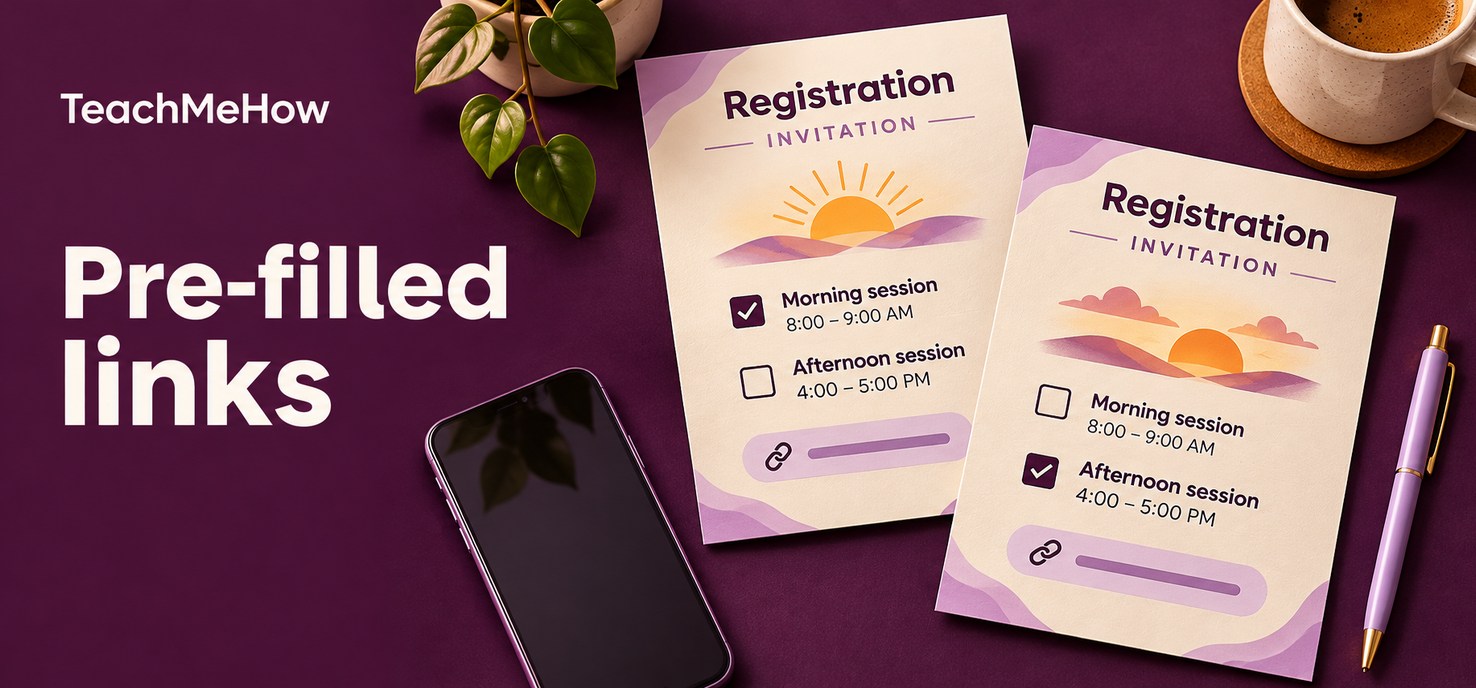
Create separate morning and afternoon signup links that open the same form with the right session selected. Test the defaults before sending invitations.
Follow these steps at your own pace. Check product terms and prices directly with providers before purchasing.
Quick answer
Open the form editor’s top-right three-dot menu and choose Pre-fill form. Select one session, leave attendee-specific fields blank, and click Get link. Repeat for the next session. Each invitation opens the same form with a different starting answer.
Write choices that will make sense in the roster
Use one multiple-choice or dropdown field called Session. Include enough detail to distinguish the options after the event. “Saturday, 9 AM · North Hall” and “Saturday, 2 PM · North Hall” are easier to interpret than “First” and “Second.” Add the date or time zone if your invitations might otherwise be ambiguous.
Generate two clean invitation links
- In the pre-fill screen, choose the morning session. Leave name, email, accessibility requests and any other personal answers empty. Click Get link and copy the generated link.
- Paste it into your invitation draft or a small organizer worksheet next to the exact morning-session label. Open Pre-fill form again to start the afternoon version from a clean form.
- Choose the afternoon option, generate its link, and store it beside that label. Copy the entire generated link. If you copy only the ordinary responder link, the session default will be missing.
- Publish the form for its intended audience. Open each saved link in a fresh responder session with the same access a guest will have. Check the selected session and make sure guest-specific fields are empty.
Test the two invitations before distribution
| Link to open | Expected starting answer | Where it belongs |
|---|---|---|
| Morning invitation | Saturday, 9 AM · North Hall | Morning session announcement |
| Afternoon invitation | Saturday, 2 PM · North Hall | Afternoon session announcement |
Understand what the pre-filled choice controls
The attendee can change the selected answer before submitting. Use the session actually submitted when preparing the roster. Opening a link or generating it does not reserve a place. Keep anything you would not want forwarded out of a shared link. After renaming a session or replacing a question, regenerate and test the affected invitation.
When both links open the same session
Start a fresh pre-fill screen for each option and copy the output immediately after selecting it. Compare the two links in separate fresh sessions. If changing the session should reveal different follow-up questions, route each answer to its own section. All of these invitations feed the same form, which matters when you choose an overall registration limit. Google’s guide to sharing forms with pre-filled answers.
Comments
Comments are reviewed before they become public.
Sign in with Google to leave a comment.
Sign in with GoogleNo approved comments yet. Be the first to start the discussion.