How to Copy Text From a Screenshot in Windows 11
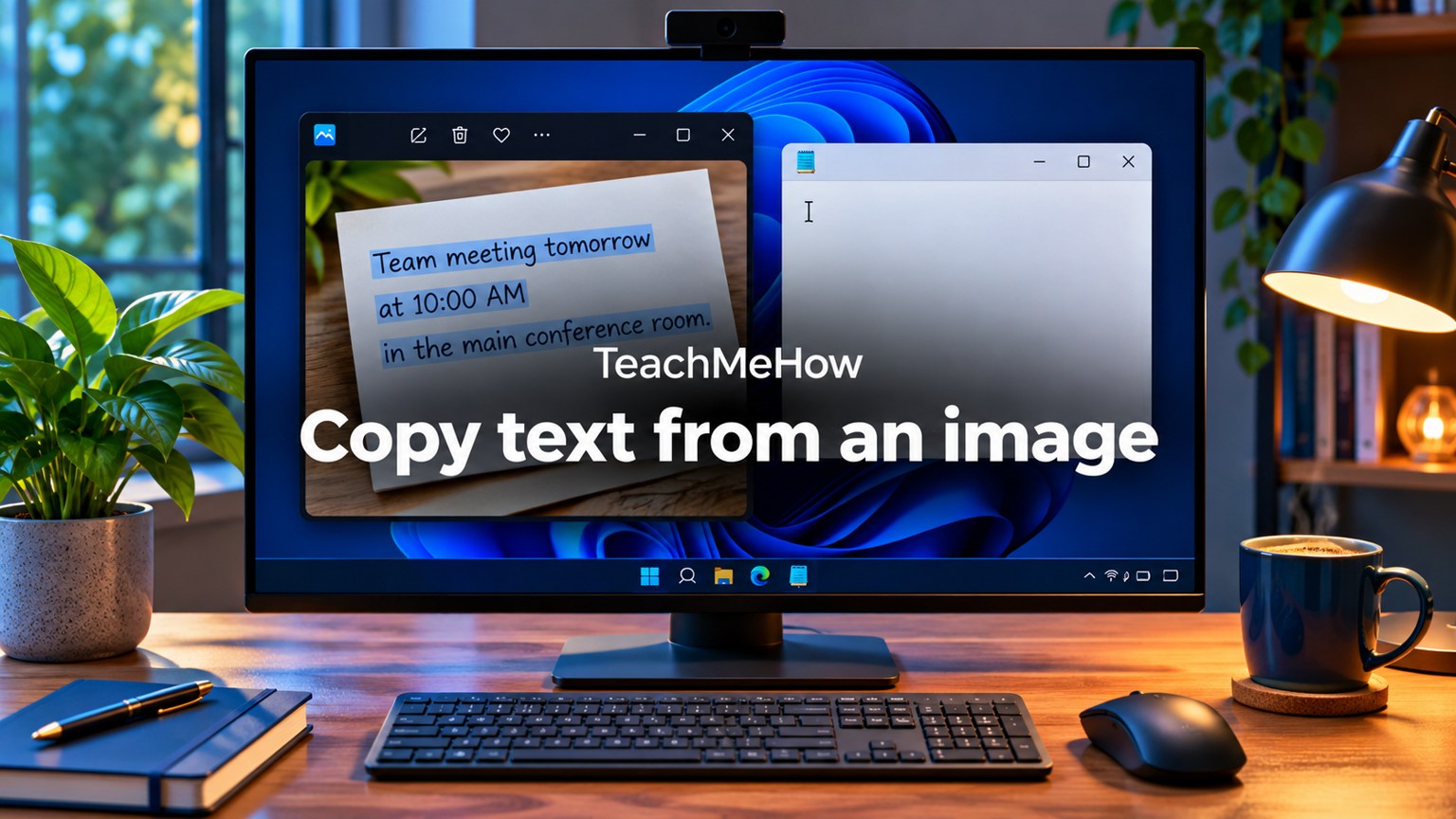
Extract editable text from a screenshot with Text actions, copy just the lines you need, and catch recognition errors before using the result.
Follow these steps at your own pace. Check product terms and prices directly with providers before purchasing.
Quick answerCapture the text with Windows key + Shift + S, open the snip in the editor and select Text actions. Select the words you need and copy them, or choose Copy all text. Paste into a plain-text editor and compare the result with the image.
Choose a useful source image
Optical character recognition, usually called OCR, reads the shapes of printed characters in pixels. It is useful for a screenshot of an error message, a photo of a typed notice, or a slide where text cannot be selected normally. If you can already select and copy the original words in a webpage or PDF, try that first. It preserves the characters without a recognition step.
For an existing picture, open it on screen and enlarge it until you can distinguish punctuation. Use the highest-resolution original you have. Enlarging a tiny messaging thumbnail can make pixels bigger without adding detail. Rotate a sideways photo upright before capturing it and keep unrelated columns outside the selection.
Recognize and copy the right lines
Press Windows key + Shift + S, choose Rectangle, and draw around the text. Click the capture notification to open the snip. In the editor, select Text actions and allow the recognized words to become selectable. If you are looking at a floating capture toolbar only, finish a snip and open its preview to reach the editing controls.
Drag across the passage you need, then copy the selection. Use Copy all text for a simple block such as a short paragraph. Open Notepad or another text editor, click in a blank document and press Ctrl + V. If you paste into a rich-text message and receive an image, return to Text actions and copy the recognized words again. The ordinary Copy image control puts different content on the clipboard.
Compare characters that look alike
| Source material | Likely error | Practical check |
|---|---|---|
| An error code or model number | O and 0, I and 1, B and 8 | Compare each character and keep hyphens in their original positions. |
| A two-column timetable | A time from one row joins the next row | Capture one column or a few rows at a time. |
| A sentence in a photo | Punctuation or line breaks disappear | Read each sentence against the image before removing extra breaks. |
For instance, a support search for an error ending in 0E can return unrelated results if OCR reads it as OE. Keep the screenshot beside the pasted text, place the caret at the beginning, and read the code in short groups. Carry the corrected text into your ticket only after comparing the final group.
Handle faint text or the wrong reading order
Take a tighter snip around one passage. Large headings, table rules, buttons and sidebars can interrupt an otherwise straightforward reading order. If the source is a browser page, enlarge the actual page before capturing it so the browser redraws its letters. If it is a photo with glare across one line, get a clearer image or transcribe that line manually.
If Text actions is missing, confirm you are in the current Windows 11 Snipping Tool editor. Check Microsoft Store for an available app update if your device allows updates. Microsoft says recognition in this feature runs locally. The destination where you later paste the words has its own handling of the content.
Copy a table without swapping values
For a two-column price list, copying everything can pair the first description with the wrong amount. Capture a few complete rows at once. Paste into a scratch document, compare each description and amount with the source, then insert the verified pair into your spreadsheet. If a column has leading zeroes, format the destination cells as text before pasting identifiers whose zeroes must be preserved.
Choose what to share
A support technician may need both a searchable error code and an image of the dialog. Paste the verified code as text and attach a separate image only when its appearance helps. First redact private details from the screenshot. If you saved a snip but cannot locate it to compare the characters, trace the screenshot to its saved folder. See Microsoft’s Text actions instructions for the capture controls.
Comments
Comments are reviewed before they become public.
Sign in with Google to leave a comment.
Sign in with GoogleNo approved comments yet. Be the first to start the discussion.