Technology · 3 min READ
How to Cast Kanopy From an iPhone or Android Phone to Your TV
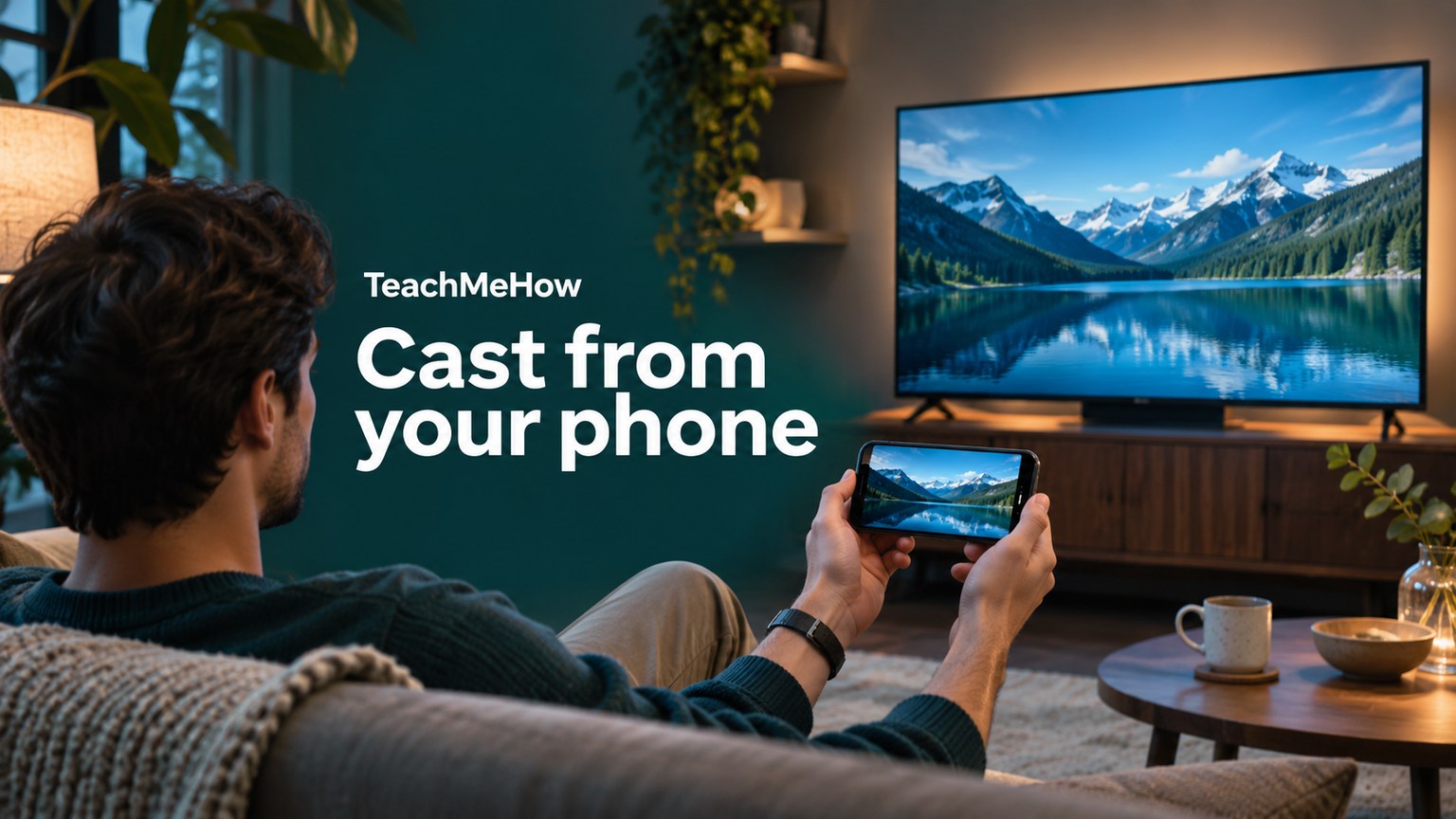
Cast Kanopy from the mobile app to a Chromecast or Google Cast TV. Check the Wi-Fi network, iPhone permission, and TV input if the screen is missing.
Quick note
Follow these steps at your own pace. Check product terms and prices directly with providers before purchasing.
Quick answer
Put your phone and your Chromecast or Google Cast-enabled TV on the same home Wi-Fi network. In the Kanopy mobile app, tap Cast at the top right, select the TV, and wait for Ready to cast. Then start the film on your phone.
Connect before you start the movie
- Wake the TV. If you use an external Chromecast, select the HDMI input where it is connected. On your phone, open Wi-Fi settings and check the network name. A phone using cellular data alone cannot discover the receiver.
- Open the Kanopy app on your iPhone or Android phone and sign in. Mobile browsers do not support Kanopy video playback. On a shared account, check the library and read the film’s ticket terms before you press Play.
- Tap the Cast symbol, a small screen with waves in one corner. Select the room name that matches the TV in front of you. Wait for the ready message on that screen.
- Choose the film in the app and start it. Use the phone to pause and resume once to confirm you control the correct TV. When finished, tap Cast again and disconnect from the receiver.
Find the point where casting stopped
| What you see | First check |
|---|---|
| No TV in the device list | Confirm both devices are on the same home network. On iPhone, check that Kanopy has Local Network access in iOS Settings. Update the app and reopen it. |
| The app connects but the TV never says Ready to cast | Check the selected room and TV input. Choose the correct receiver before starting a ticketed title. |
| The movie appears on the TV but keeps stopping | The cast connection succeeded. Troubleshoot the interrupted Kanopy stream on the TV and compare it with playback on the phone. |
If your viewing device is a Roku and you want to operate it with the remote, link the Kanopy Roku app to your library account. Kanopy’s Chromecast instructions and Google’s Cast device-discovery checks.
Comments
Comments are reviewed before they become public.
Sign in with Google to leave a comment.
Sign in with GoogleNo approved comments yet. Be the first to start the discussion.